Instructions from the Office of the University Registrar for creating grade reports.
Create a PDF Report
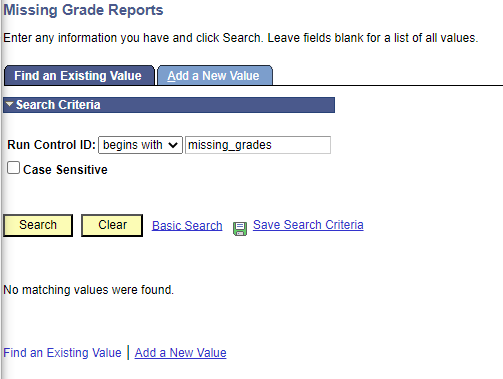
- Navigate to Missing Grade Reports.
Enter the appropriate Run Control ID, then select the Search button link.
- Select the appropriate values from these required fields.:
- Academic Institution (OSUSI will auto-populate)
- Term
- Student Population (the option to show all students has been removed due to inaccurate results)
- Grade Selection (missing grades will include E, I, and IX grades)
Sort Option (required)
You can streamline your results by selecting options from the remaining fields.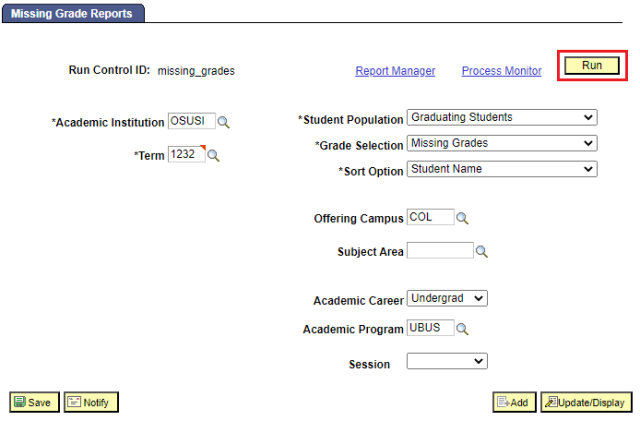
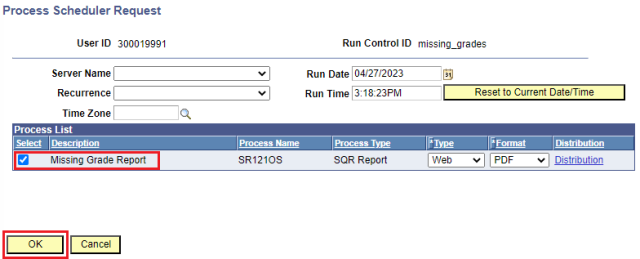
- Select the Run button link to open the Process Schedule Request page.
- Select the Missing Grade Report checkbox.
Select the OK button link to return to the report options page.
- Select the Process Monitor link (located near the Run button link) to begin the process and view the Process Monitor page.
- Select the Refresh button link to view the current process status. Continue to Refresh until the process is finished. The process is finished when the Run Status is Success, and the Distribution Status is Posted (Queued and Processing indicate the process is still running).
Once the process has finished, select the Details hyperlink from the Details column in the Process List section to open the Process Details.

Select the View Log/Trace link to view the View Log/Trace page and view the available reports.
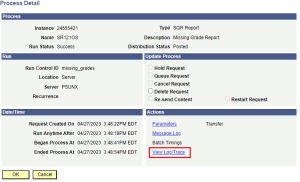
- Select the PDF file link to view and print the report using your browser.
Create an Excel Report
- Navigate to Missing Grade Reports.
Enter the appropriate Run Control ID, then select the Search button link.
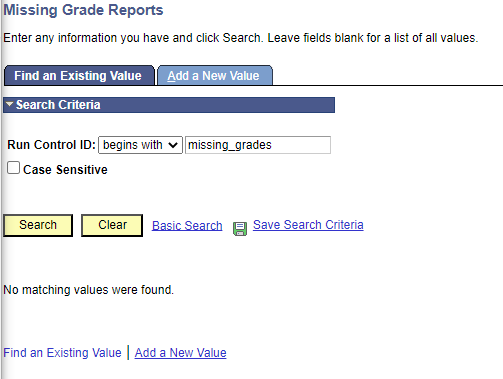
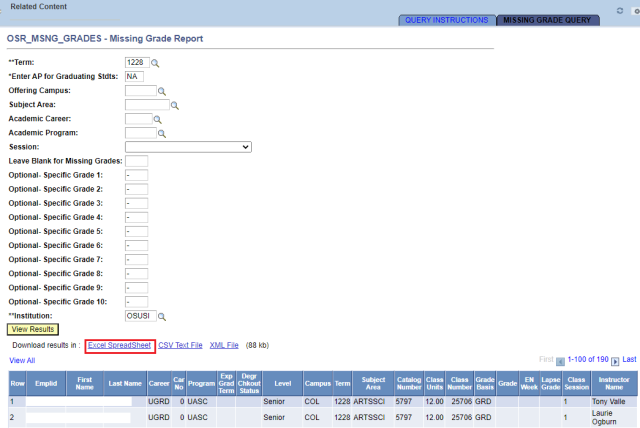
From the Related Content menu select Missing Grade Query. You may also navigate to the related content screen by selecting the red triangle in the term selection box.
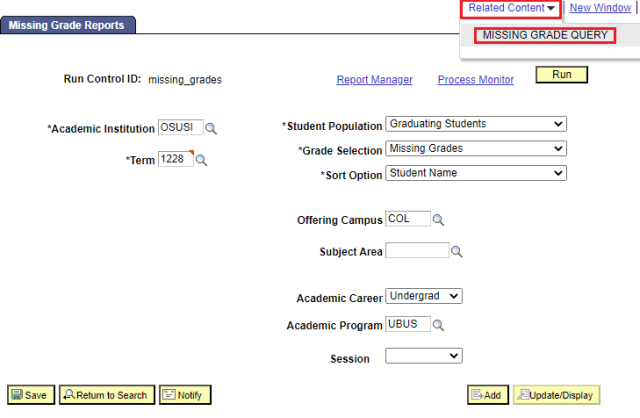
- The Related Content section will be available with additional input fields. Select the appropriate values from the required fields:
- Term
- Enter AP for Graduating Stdts (NA equals all)
- Institution (OSUSI will auto-populate)
You can streamline your results by selecting options from the remaining fields.
- Select the View Results button link to display the results.
Select the Excel SpreadSheet link to download the file.