Leave of Absence

Instructions from The Office of the University Registrar to place a leave of absence or a return from leave of absence on a student’s record.

Place a Leave of Absence

Navigation

Records and Enrollment→Career and Program Information →Student Program/Plan

  1. Navigate to the Student Program page.
  2. Enter Search Criteria, then select the Search button link to open the student's record.
  3. Select desired term from Search Results.


    Helpful Note

    You will need to select the Update all mode button link when on the Student Program page in order to view the history or make any updates to their program and plan information.

  4. Select the Add a new row at row 1 link (plus sign icon).
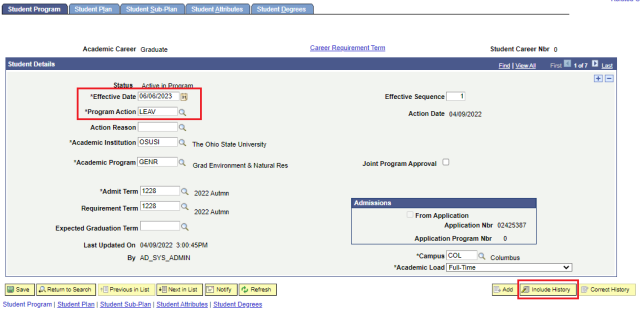
  5. Update the Effective Date to the date the leave will take effect.


    Critical Note

    For the action to apply to a term, it must be dated prior to the start of the term. 

  6. Enter LEAV as the Program Action.

    Leave of Absence
  7. Select the Save button link.
 

Critical Note

If a message about the presence of future term activations appears all future term activations for this career will need to be removed.

 Return From a Leave of Absence


Navigation

Records and Enrollment→Career and Program Information →Student Program /Plan

  1. Navigate to the Student Program page.
  2. Enter Search Criteria, then select the Search button link to open the student's record.
  3. Select desired term from Search Results.
 

Helpful Note

You will need to select the Update all mode button link when on the Student Program page in order to view the history or make any updates to their program and plan information.

  1. Select the Add a new row at row 1 link (plus sign icon).
  2. Update the Effective Date to the date the return will take effect.
 

Critical Note

For the action to apply to a term, it must be dated prior to the start of the term.

  1.  Enter RLOA as the Program Action.
  2. Select the Save button link.