Instructions from the Office of the University Registrar for viewing a student's grades.
Path.
- Navigate to the Student Grade Inquiry page.
- Enter Search Criteria, then select the Search button link to open the student's record.
- Select desired term from Search Results.
View Grade Summary
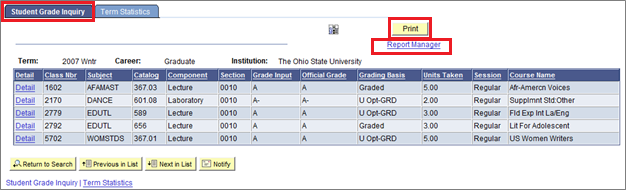
Review the student's grades.
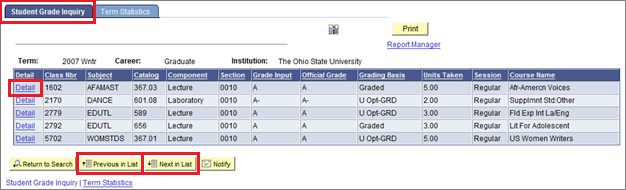
- Select Next in List to view grades for more recent term or Previous List to view grades for previous terms.
View Grade Details
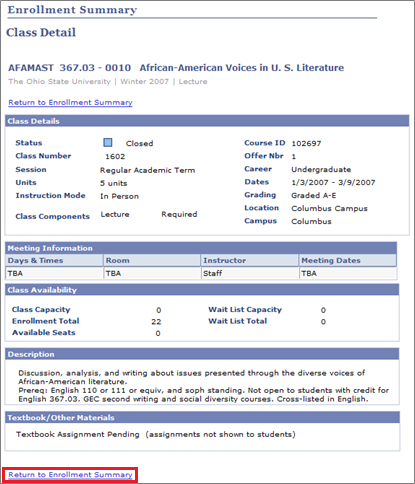
- Select the Detail link to see information about an individual class.
To return to the Student Grade Inquiry, select the Return to Enrollment Summary link.
Review Term Statistics
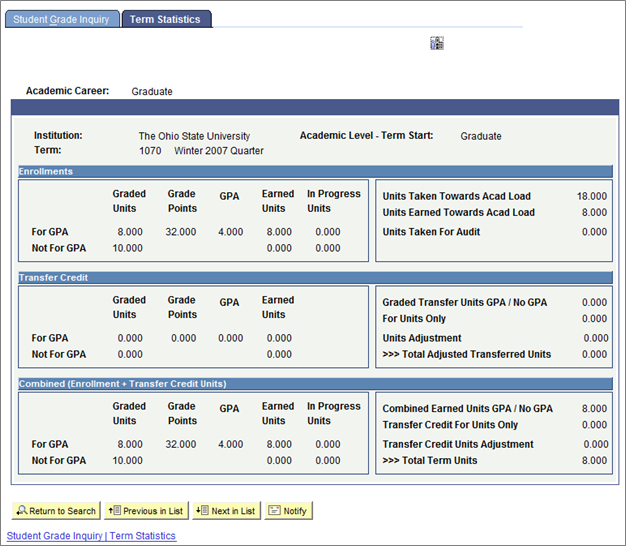
Select the Term Statistics tab to review term information.
Print Grades
From the Student Grade Inquiry tab, select the Print button link then the Report Manager link to begin the process.
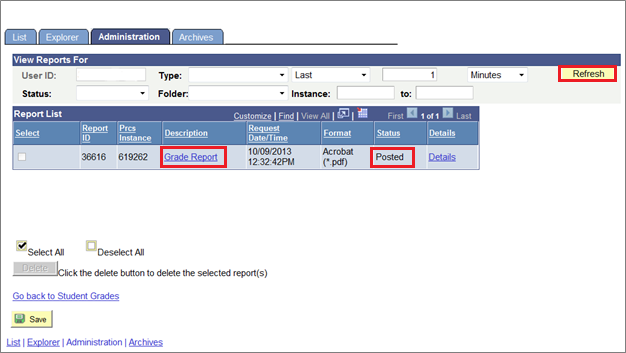
- Select the Refresh button link to view the current process status. Continue to Refresh until the process is finished. The process is finished when the Run Status is Success, and the Distribution Status is Posted (Queued and Processing indicate the process is still running).
Once the process has finished, select the Grade Report link from the Description column to open the report.