Instructions from the Office of the University Registrar to run a GPA Threshold Report.
Path.
- Navigate to the GPA Threshold Report page.
Enter the appropriate Run Control ID or create one using the instruction below.
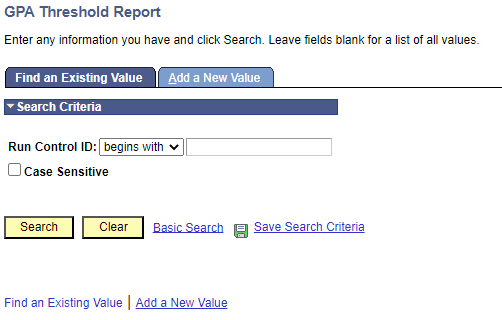
- Complete the following fields to specify report criteria:
- Academic Institution (required and auto populated)
- Academic Career (required)
- Term (required)
- Primary Academic Program
- Grade Point Average Type (required)
- GPA Lower Limit
- GPA Upper Limit
- Deficiency Points Option
- Degree Checkout Status
Sort Order by Program (required)

Select the Run button link. A confirmation of the Process Scheduler Request will be generated.

- Select the OK button link to confirm the request and return to the GPA Threshold Report page.
- To run the process, select the Process Monitor link. The Process Monitor page will open.
- Select the Refresh button link to view the current process status. Continue to Refresh until the process is finished. The process is finished when the Run Status is Success, and the Distribution Status is Posted (Queued and Processing indicate the process is still running).
Once the process has finished, select the Details hyperlink from the Details column in the Process List section to open the Process Details.

On the Process Details page, select the View Log/Trace link to open the Process Detail page.

Select the PDF file link to view and print the report using your browser.
