Instructions from the Office of the University Registrar for creating individual and batch advising reports.
Single Student Advising Report
Run an advising report for an individual student.
Path.
- Navigate to the Advising page within the Advisee Buckeye Link.
- Enter the Search Criteria, then select the Search button.
- Select the Buckeye Link tab.
- Select the Generate Advising Report link in the Academics section. A message will appear. Select OK to proceed.
- The Advising Report will open in a new browser tab as a PDF file.
Multiple Student Advising Reports
Run multiple advising reports at one time using a batch process.
Path.
Run multiple advising reports at one time using a batch process.
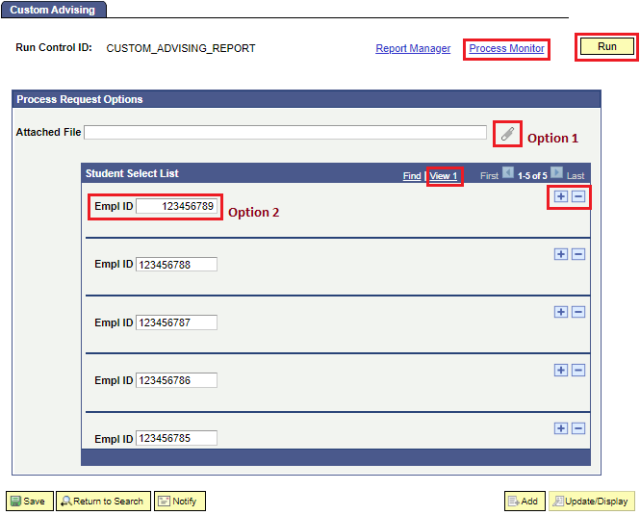
- Navigate to the Custom Advising Report page.
- Either create a report or run a report you have already created:
- To add a report, select the Add a New Value tab, name the report and select Add. You only need to add a run control the first time you run the report. After the run control is added, it can be reused each time you need a similar report. Save the file name created for future use.
- To run a report already created search for the report name as the Run Control ID. Select Search on the Find an Existing Value tab to locate your Run Control ID. Select the report name to view the Process Request Options.
- Follow Option 1 or Option 2 below to add the student IDs to the Process Request Options section.
Option 1: Enter student IDs directly in the Student Select List area
- In the Student Select List area, enter the first student’s OSU ID (EmplID).
- To add additional students, select the Add a new row option (plus sign icon) to enter their OSU IDs.
- Select the Delete row option (minus sign icon) to remove a row.
Option 2: Upload a text file of student IDs in the Student Select List
- If needed, learn how to Create a Text File for batch processing.
- To view the details of the file that was uploaded, select the View File button. A new tab will open in your browser where the list of student IDs are listed.
- Select the Add Attachment link (paperclip icon) then the Choose File link button to browse for the already created and saved text file. Once the file is located and selected, select Upload to upload the file.
Select the Run button link to process the request.
- Pick the row containing the Process Description that matches the option chosen earlier:
- For option 1, manual entry of IDs, select Advising Report (Process Name is OSR_ADVC)
- For option 2, text file, select Adv Report for group of Stdnts (Process Name is SR120OSJ)
- Select the OK link button to schedule the process to run.
- Select the Process Monitor link (located near the Run button link) to open the Process List where you can view to view the process progress.
- Select the Refresh button link to view the current process status. Continue to Refresh until the process is finished. The process is finished when the Run Status is Success and the Distribution Status is Posted (Queued and Processing indicate the process is still running).
- Once the process has finished, select the Process Name that matches the option chosen earlier:
- For option 1, manual entry of IDs, select OSR_ADVC (shown in screenshot example below).
For option 2, text file, select SR120OSJ.

- Select the OSR_ADVIS_AE link to open Process Detail.
- Select the View Log/Trace link in the Actions section link to access the files created.
- Select the PDF file link in the File List to view the advising reports.