Instructions from the Office of the University Registrar to add or drop a course or add a student to a waitlist.
Add Course(s)
Info.
- Navigate to the Quick Enrollment page.
- Complete the four fields that are listed in the Find an Existing Value page:
- OSU ID
- Academic Career
- Academic Institution (OSUSI will be auto-populated)
- Term
- Select the Add button link.
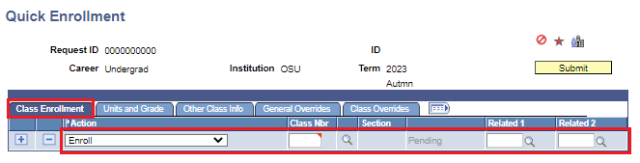
Complete the following fields on the Class Enrollment tab:
- Select Enroll as the Action
- Class Nbr
- Related Class1 (if applicable)
- Related Class2 (if applicable)
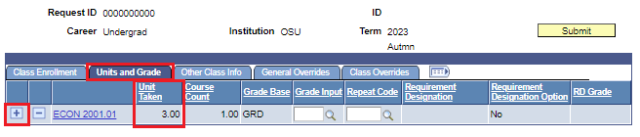
- Select the Units and Grade tab to confirm correct credit hours. If the course being added is a variable credit hour course, the Unit Taken box will be available to enter credit hours.
- Select the Override section (General Overrides and Class Overrides tabs) and check any applicable fields. (Access to these Overrides are limited).


- Return to the Class Enrollment tab.
- To add additional class select Add a new row at row 1 link (plus sign icon) then follow Steps 4, 5, and 6.
- Once all classes to be added are entered, credit hours verified, and overrides checked (if applicable), select the Submit link button.
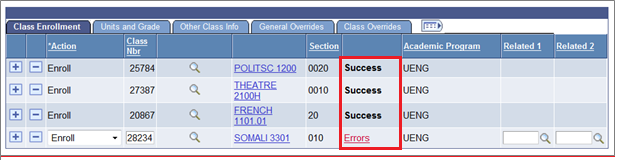
Review the status of each row.
- Success status indicates the student is enrolled or waitlisted.
- Errors status means an additional action is required. Select the Errors link to determine the error.
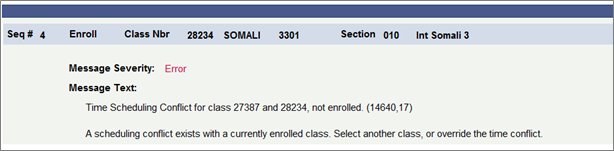
- Errors that may be resolved in the General Overrides tab by selecting the appropriate override checkbox:
- Appointment (overrides appointment window and allows earlier scheduling)
- Unit Load (overrides maximum credit allowed)
- Time Conflict (allows enrollment in classes with conflicting times)
- Action Date (if action occurred on a date other than the date the action is being transacted, e.g., backdating)
- Action Dt (becomes available if Action Date is checked)
- Required Designation (overrides requirement designation)
- Career (overrides career pointer rules)
- Service Indicator (overrides service indicators)
- Requisites (overrides requisites)
- Errors that may be resolved in the Class Overrides tab by selecting the appropriate override checkbox:
- Class Limit (overrides the full class status and enrolls the student)
- Class Links (allows students to add/drop classes without having to do likewise for the related content sections)
- Class Units (overrides Units Taken field for both fixed and variable unit classes)
- Grading Basis (allows students to enroll into a class with a grading basis other than the one established for the class)
- Class Permission (overrides general permission and student-specific permission requirements, academic career pointers, and career pointer exception rules)
- Wait List Okay (allows student to be added to the waitlist if space is available on the wait list and the last date to wait list has not passed)
- Wait List Pos (Click to see student's position on the wait list.)
- Once overrides have been checked, select the Submit button link.
- Review the status of each row. Repeat steps 11 and 12 until all classes are enrolled successfully.
- Select the Study List link to view the student's schedule.
Drop Course(s)
Info.
- Navigate to the Quick Enrollment page.
- Complete the four fields that are listed on the Find an Existing Value page:
- OSU ID
- Academic Career
- Academic Institution (OSUSI)
- Term
- Select the Add button link.
Complete the following fields on the Class Enrollment tab:
- Select Drop as the Action.

- Class Nbr of the class to be dropped. Type the Class Nbr of the class to be dropped. You may also use the Search link (magnifying glass icon) to locate the Class Nbr. Once located, select the Enrollment Select check box of the desired course.
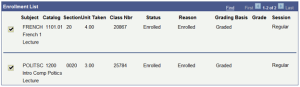
- To drop additional classes, select the Add a new row at row 1 link (plus sign icon).
- Select the Submit button link.
- Review the status of each row. Success status indicates the student has been dropped.
- Errors are not typically relieved during the drop process. If present, select the Errors link to take action, if appropriate. Override instructions are in the Add Course(s) section above.
- Messages to review the message and are typically informational. Select the Messages link to receive the message. If no action is required, selecting the OK button can be selected to proceed.
- Select the Study List link to view the student's schedule.
Add a Student to a Waitlist
Path.
- Navigate to the Quick Enrollment page.
- Complete the four fields that are listed on the Find an Existing Value page:
- OSU ID
- Academic Career
- Academic Institution (OSUSI will be auto populated)
- Term
- Select the Add button link.
- Enroll is the default Action.
Enter the Class Nbr (if you already know the class is full, skip to step 6.) If you are not sure if the class is full, select the Submit button link. If the class is full, you will receive an error. To add student to the waitlist, continue to step 6.
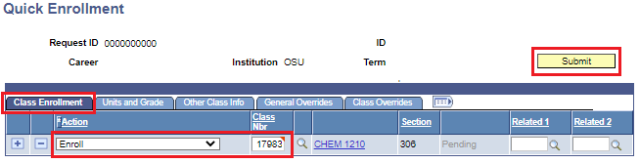
- Select the Class Overrides option/tab.
Select the Wait List Okay selection box.

- Select the Submit button link. After processing, Class Enrollment is displayed.
- Select the Messages link to review enrollment messages.
- Select the Return button link to return to Quick Enroll.
Important Information
The Swap Action can decouple classes with multiple components and thus should NEVER be used for multiple part courses. All classes must be added or dropped using Enroll or Drop as the Action.