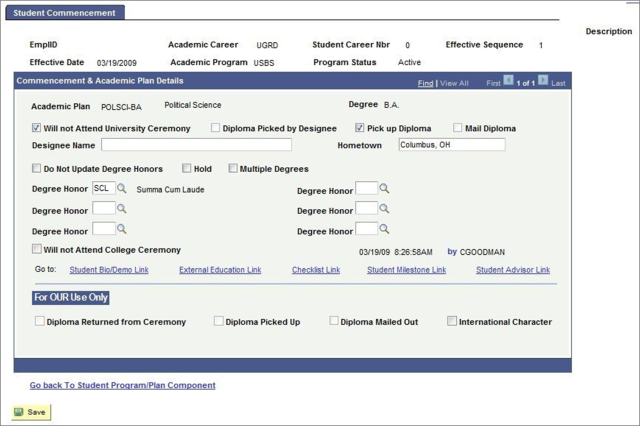
Instructions from the Office of the University Registrar viewing and updating a student’s degree status.
View Degree Status
Path.
- Navigate to the Student Program/Plan page.
- Enter Search Criteria, then select the Search button link to open the student's record.
- Select the appropriate student and CPP stack.
- Select the Student Degrees tab to view details. Additional status updates may be viewed by selecting the Show next row link (right arrow) or the View All link to view additional updates. The options include:
- Applied for Graduation
- Approved
- Degree Awarded
- Denied
- Eligible for Graduation
- Needs to Finish Pending Work
- Program in Review
- Withdrawn
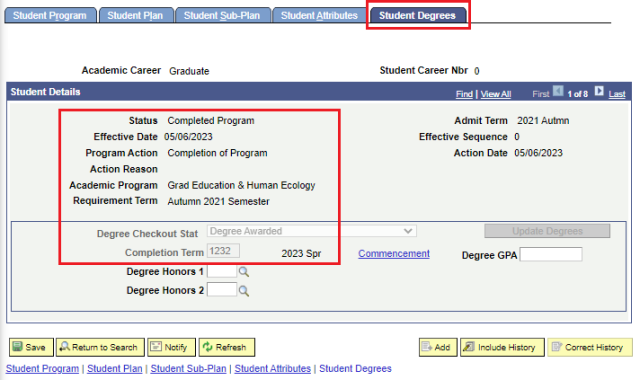
- Below is a screenshot of an awarded degree. Information provided includes:
- Status
- Effective Date
- Program Action
- Action Reason
- Academic Program
- Requirement Term
- Degree Checkout Status
Completed Term
Updating Student Degree Status
Info.
- Navigate to the Student Program/Plan page.
- Enter Search Criteria, then select the Search button link to open the student's record.
Select the appropriate student and CPP stack.

- Select the Student Plan tab and validate the student's plan is degree granting. If the student's program and/or plan need to be changed, you should refer to the step-by-step instruction for Adding or Changing a Student's Program, Plan, Sub-Plan. Make any necessary changes before proceeding.
- Insert a new row on the Student Program tab using the Add a new row at row 1 (plus sign icon).
- Update the following fields:
- Program Action (DATA)
- Action Reason (RAPG)
- Expected Grad Term
- Select the Student Degrees tab.
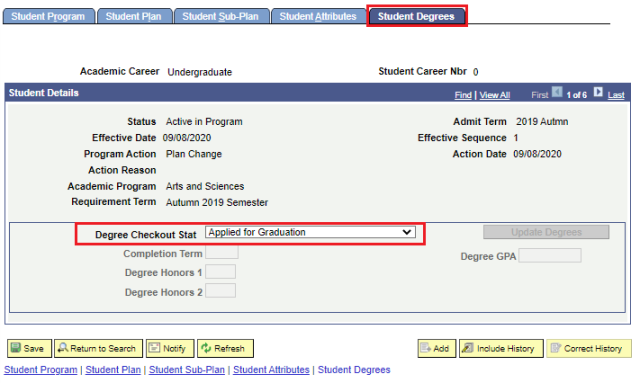
- Select Applied for Graduation as the Degree Checkout Stat.
- Select the Save button link. The Commencement link becomes available after the value of Applied is entered.
- Select the Commencement link. This page contains unique data elements needed for the commencement processes. Only commencement contacts will have maintenance on this page; others will have view only access.