Instructions from the Office of the University Registrar for running the College Verification Report.
Path.
- Navigate to the College Verification Report page.
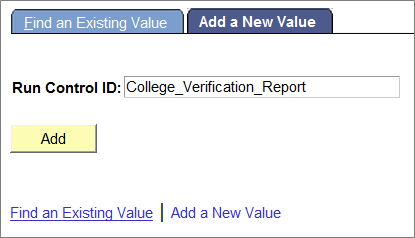
- Enter the appropriate Run Control ID, then select the Search button link to open the Print Commencement Bulletin page.
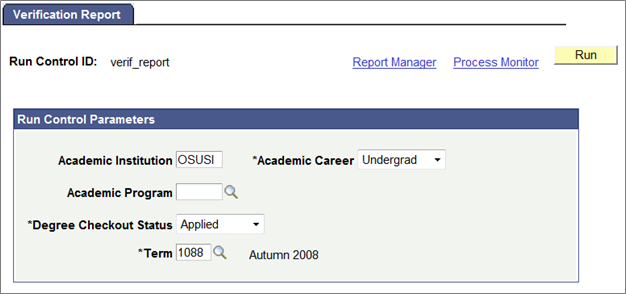
- Complete the following fields on the College Verification Report page:
- Academic Institution = OSUSI
- Academic Career (required)
- Academic Program
- Degree Checkout Status (required)
- Term (required)
Select the Run button link.
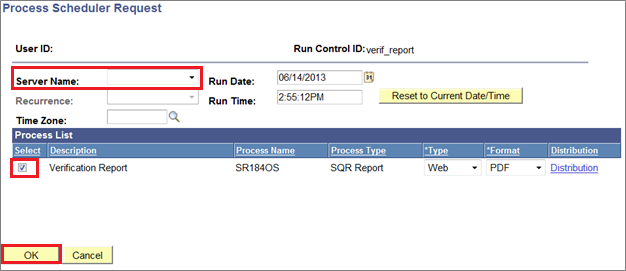
- Confirm the Process Scheduler Request.
- Confirm Server Name is blank (defaults to correct server).
- Select the Verification Report Process Name SR1840OS checkbox.
Select the OK button link to return to the process request.
- Select the Process Monitor link to view the Process Monitor page.
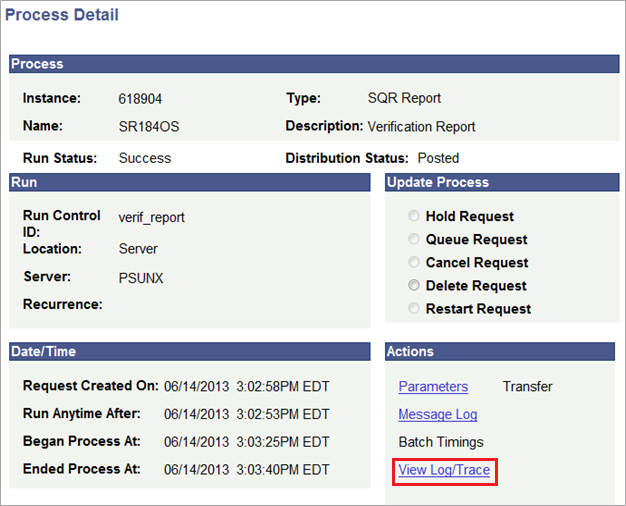
- Select the Refresh button link to view the current process status. Continue to Refresh until the process is finished. The process is finished when the Run Status is Success, and the Distribution Status is Posted (Queued and Processing indicate the process is still running).
- Once the process has finished, select the Details hyperlink from the Details column in the Process List section to open the Process Details.

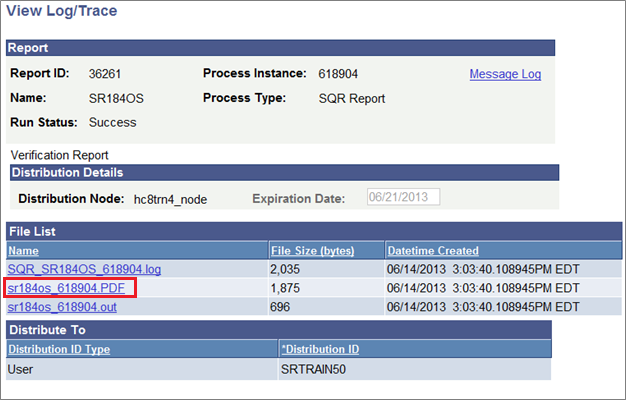
- Select the View Log/Trace link in the Actions section.
Select the .PDF file from the File List section to view the report.