Instructions from The Office of the University Registrar to view, print or download a class roster.
View Class Roster
Path.
- Navigate to the Class Roster page.
- Complete the following Search criteria:
- Academic Institution = OSUSI
- Term
- Subject Area
- Catalog Nbr
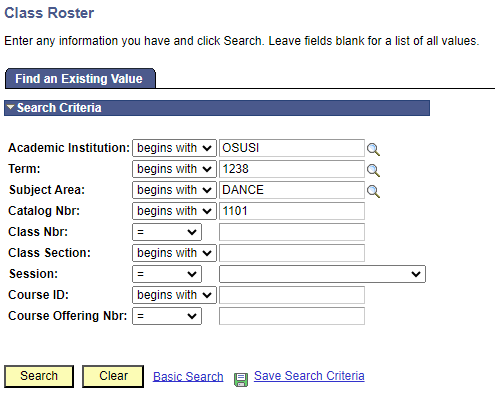
- Select the Search button link.
If not sent directly to the class, select desired Class Nbr/Class Section from Search Results list.

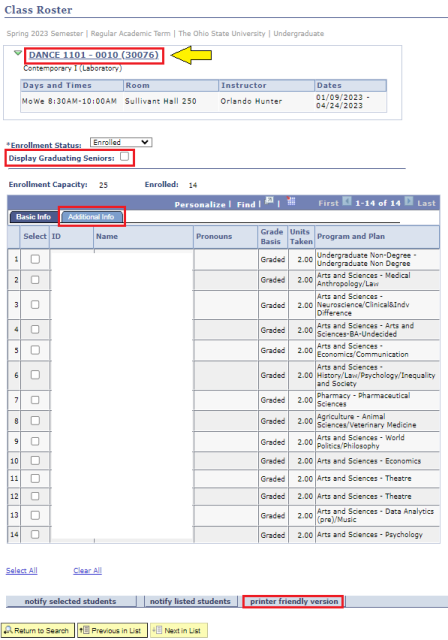
- View the Class Roster.
- Select the course name link to review additional information about the class.
- Selecting the Display Graduating Students checkbox to sort out any students who have applied to graduate.
- Selecting the Additional Info tab will allow students who are members of a Special Population to be selected (A=Athlete, G=Graduating, H=Honors, S=Scholars)
Print Class Roster
- Follow the View Class Roster instructions above.
- To print the roster, use either the browser print button or select the Printer Friendly Version button.
Export Class Roster
- Follow the View Class Roster instructions above.
Select the Download to Excel link (grid icon) to download the file to your computer's download file location.