Instructions from The Office of the University Registrar to assign academic standing for an individual student.
Path.
- Navigate the the Academic Standing page.
- Enter Search Criteria, then select the Search button link to open the student's record.
- Select desired term from Search Results.
Select the Academic Standing tab.
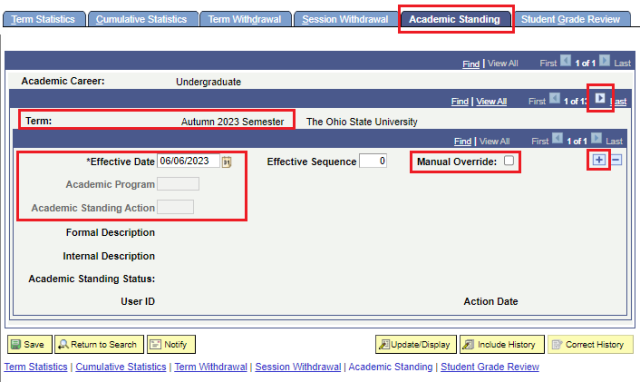
- Choose the appropriate term by selecting the Show next row link (arrow icon). If there is an existing academic standing row for the term, you will need to insert a new effective-dated row by selecting the Add a new row at row 1 link (plus sign icon).
- Check the Manual Override checkbox, or the Academic Program and Academic Standing Action fields cannot be updated.
- Complete the following fields:
- Academic Program
- Academic Standing Action (actions include the following but vary by career)
- DISE Disenrollment
- DISM Dismissal (to be completed by OUR only)
- GOOD Good Standing
- PROB Probation
- REIN Reinstatement
- SPPD Special Action Probation/Department
- SPPP Special Action Probation/Primary
- SPPS Special Action Probation Secondary
- SPPU Special Action Probation/University
- SUSP Suspension
- WARN Warning
- Select Save button link. The Academic Standing can be validated by viewing the Advising Report.