Instructions from the Office of the University Registrar to add, edit or delete a student’s address.
Add an Address
Path.
In the example below Permanent Address is already on file and a Home/Current Address is being added.
- Navigate to the Addresses page.
- Enter Search Criteria then select the Search button link to open the student's record.
Select either Permanent or Home/Current in the Add Addresses Types section.

- In the Add Address section, select the Edit Address link.
- Complete the following fields:
- Address 1 (required)
- Address 2
- Address 3
- City (required)
- State (required)
- Postal (required)
- County (if known). If the country indicated is incorrect, select the Change Country link to select the correct country.(required)
- Select the OK button link.
- Select the Submit button link in the Add Address section.
Select the Save button link to view the new address. If you do not see the new address, select the View All link.
Edit an Address
Path.
In the example below, a Permanent Address is already on file and a Home/Current Address is being added.
- Navigate to the Addresses page.
- Enter Search Criteria then select the Search button link to open the student's record.
- Select Edit/View Address Detail link from the row of the address type to be changed. You may need to select the View All link to see all entries and open the Address History page..

Add an additional address to the Address History by selecting the Add a New Row at row 1 (plus sign icon).
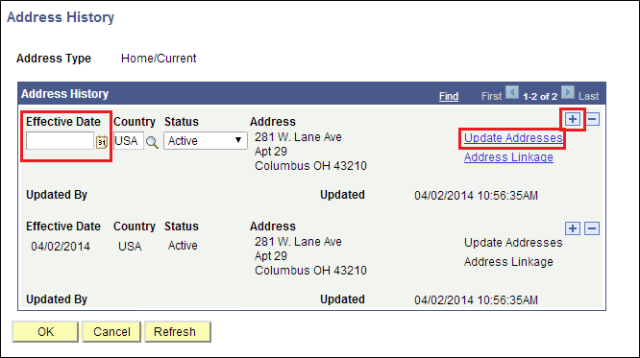
- Enter a new Effective Date.
- Select the Update Addresses link to open the Edit Address page.
- Complete the the following fields:
- Address 1 (required)
- Address 2
- Address 3
- City (required)
- State (required)
- Postal (required)
County (if known) - If the country is incorrect, select the Change Country link to select the correct country.

- Save by selecting OK.
- Review the Current Address page for accuracy. If you don't see the updated address select the View All link.
- If correct, select the Save button link to save the address. button link. If not correct, select the Edit/View Address Detail link to edit the address again.
Delete an Address
Addresses are inactivated not deleted.
- Follow steps 1 through 5 of the Edit an Address section above.
- Change the Status to Inactive then select OK button link and then select the Save button link to save.