This document will assist users in migrating to the Shared Directory and Endpoint Services AD.
To begin the migration, follow the steps below.
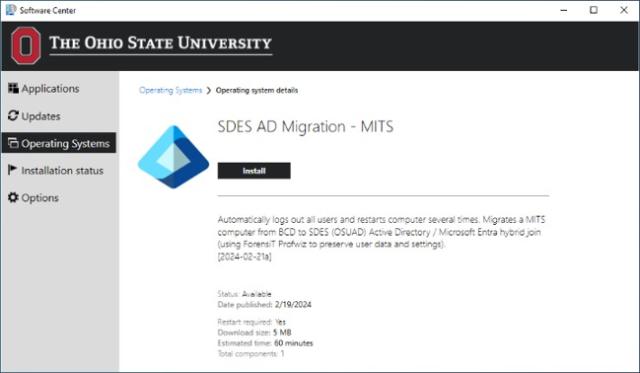
- Sign in to your computer and launch Software Center.
- Select “Operating Systems” from the column on the left side of the Software Center window.
You will see “SDES AD Migration - MITS” available. Click Install.
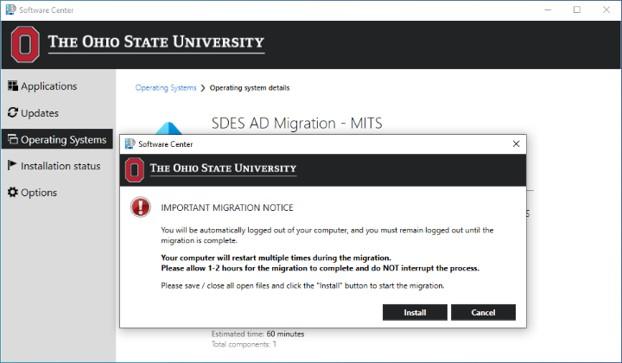
A pop-up window will appear with additional information about the migration process. Make sure you have saved any files that are open and your device is connected to a power source. Click Install.
After clicking Install, a progress bar will appear until you are automatically signed out.
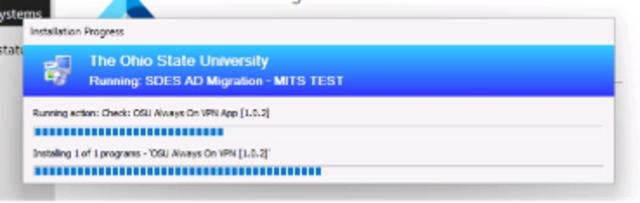
After a few moments, you will be automatically signed out and your computer will return to the lock screen.
Your computer will restart multiple times during migration. Keep your computer on and connected to power. Do NOT attempt to sign in or interrupt the process. The migration will take approximately 1 - 2 hours.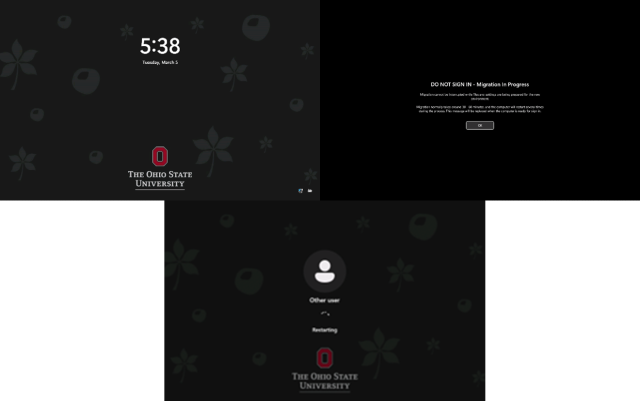
When the migration is complete, you will receive a pop-up message confirming “migration is now complete”. Click OK. You may need to click on the lock screen to begin the sign in process.

Read the Ohio State Application Use Notification and click OK.
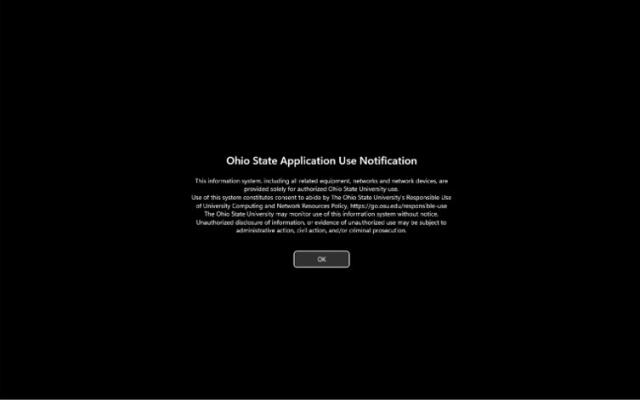
Sign in using your Ohio State username (lastname.#) and password.
Note that the sign in screen indicates a sign in to “OSUAD” now.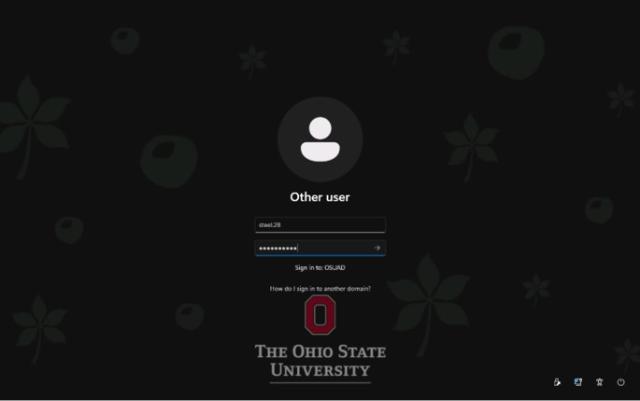
During sign in, a screen will notify you that applications are being updated.
This will only occur during your first sign in after migrating and should only take a few minutes.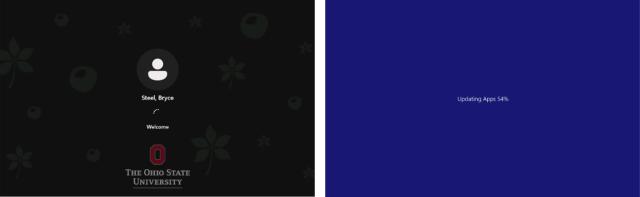
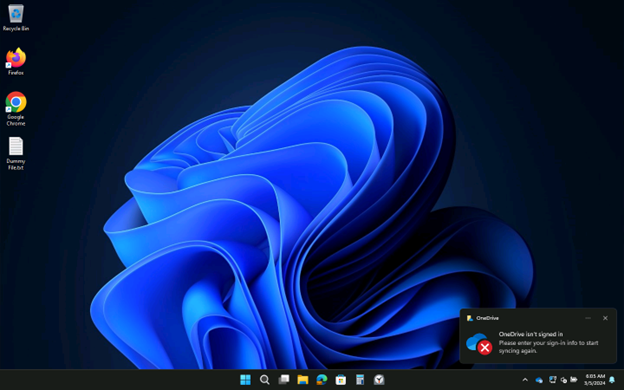
After signing in, you will notice the following:
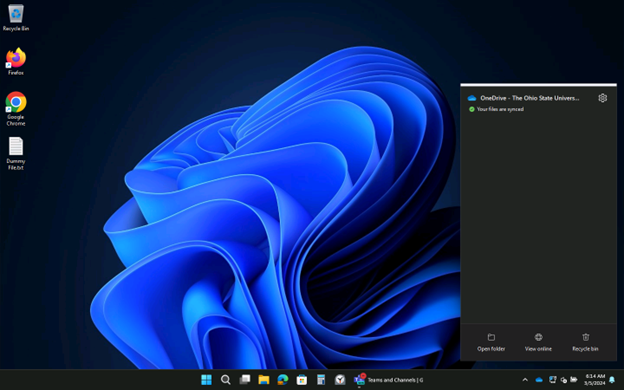
- Your files and settings have been migrated.
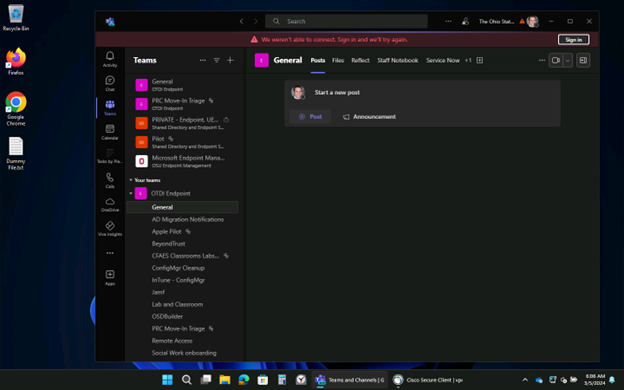
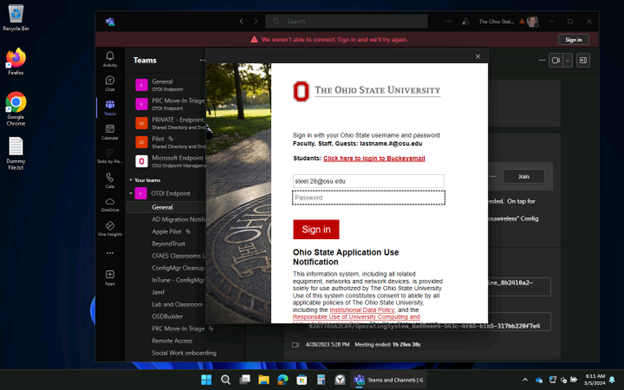
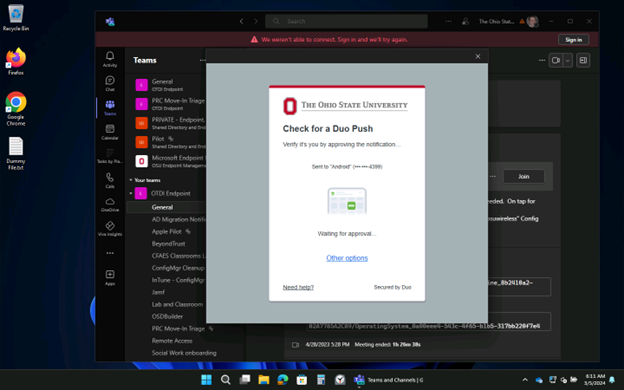
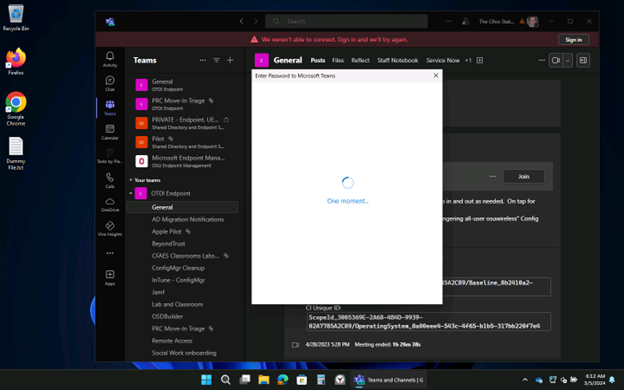
- Microsoft applications will prompt you to sign in.
- If you receive an error message, restart the application.
- The application may prompt you again for sign in, but it should start working normally.
Example of Post Migration Microsoft Application Sign In Experience