All interactions with Service Now start with a Contact. A Contact will become either a Request Item or an Incident. This job aid will walk through creating a contact and looks at what goes into the decision of Incident or Request.
Select the Service Desk section on the navigation panel.
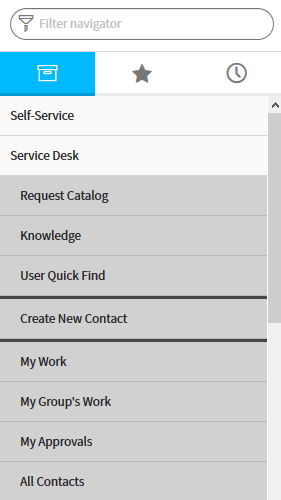

Select Create New Contact.
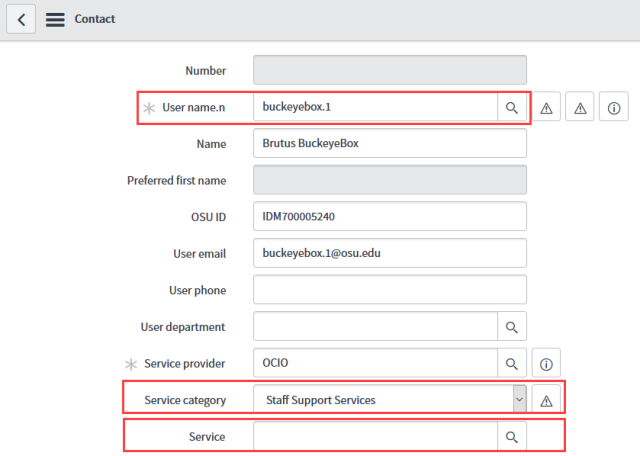
Enter the customer's username (lastname.#) in the Username.n field
Enter the Service Category and Service fields. Two ways of completing this task are:
Select the

down arrow in the Service Category field. Select a general category and then click the

magnifying glass lookup button next to the Service field to display a list of related services for the selected service category. Click the service name and it will be entered into the Service field.
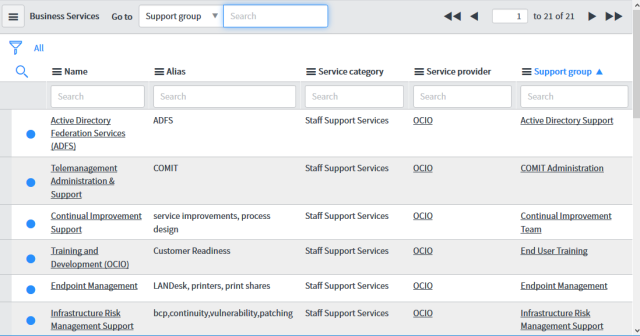
Begin to type the name of the service in the Service field. In the example below the word "mobile" is entered, a list of matching services appears in the box below the field. Click the service. The Service Category and Service Provider fields will auto populate.

Type a brief explanation of the issue in the Short description field.

The Short description should be thought of as a headline, short but descriptive. This is essential when working with a large number of incidents or requests as a service desk will.
The State of a contact should be "Open" and should stay open unless you are actively working on the Contact. Work will not typically be performed within the contact. Contacts will become either an Incident or a Request or they are closed. The different states are:
| Pending | This state can be used while the item is waiting for more information, either form the customer or from another area. The contact form provides the ability to e-mail the customer. |
|---|---|
| Work In Progress | This state is designed as a means to mark what you are working on at that point in time. The "Work In Progress" state can also be used to indicate to others that you are currently working with the Contact record. |
| Closed Complete | This state should be used when the record no longer needs further attention. This means that either any related Incidents have been resolved or any related Request have been fulfilled. The Closed Complete state can be marked manually by choosing the option from the drown down list or will automatically be set by clinking either the "Create Generic Request" or "Create Incident" buttons. |
| Closed Incomplete | This state is designed mainly for spam. Should a Contact record be received by the IT Service Desk and the contents of it seen as either spam or junk mail the Contact state should be make as 'Closed Incomplete'. |
| Closed External Referral | This state is used when the customer is referred to an external support group. This could be a local IT group or the Medical Center IT, or any group that the user was referred to for help with their issue that does not use the same instance of ServiceNow. |
The contact buttons before saving the contact record.

The contact buttons after saving the contact record.

Next, select a group to assign the Task or Request to.
There are several ways in which this can be done.
1. Enter the name of the group
Begin typing the name of a group and suggestions will appear. Selecting one of the options will populate the field.
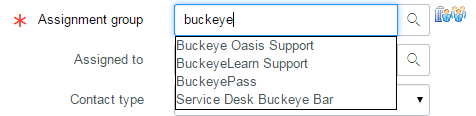
A list of possible groups can be seen by selecting the magnifying glass icon.

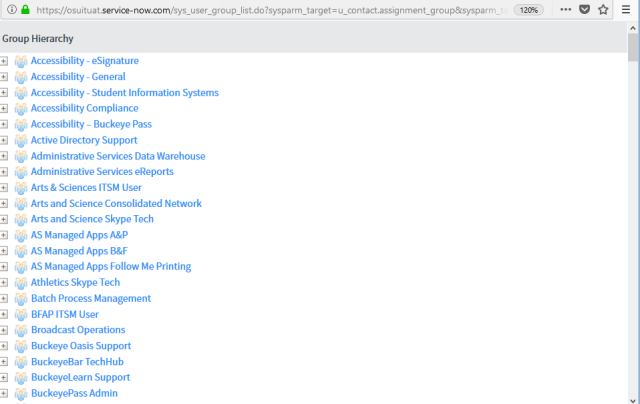
Selecting a group in the list will populate the Assignment Group field
OR
2. Choose group by person's name.#
If a user knows a person in the group they need to assign the record to, the group can be chosen by entering someone's username (name.#).

Select the assign by username icon and then type in the name.# of the user.
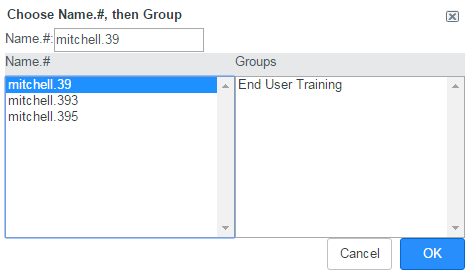
Select the username in the left box and list of groups they are a member of will populate on the right. Selecting the group from the list will populate the Assignment Group field.
OR
3. Set assignment group by selected Service
Use the third option to the left of the Assignment Group field.


This will auto assign the group based off of what is in the Service field.

Selecting the magnifying glass button next to the Assigned To field will display a list of people within the group specified in the Assignment Group field. Selecting a name in the list will populate the Assigned To field.
Once assigned to the correct group, set a Contact type.

The Contact Type field provides the following options:
- Request Catalog
- Self Service
- Walk-In
- Phone
- UES
This is used to track how the customer contacted the help desk.
Make a selection from the Submitted through drop-down menu.
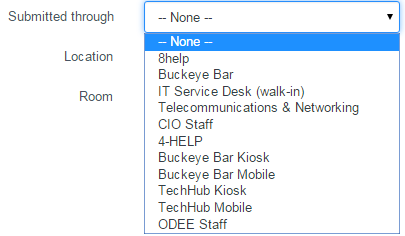
The Submitted through field tracks how a customer contacted your Help Desk.
The Submitted through options for the OCIO/ODEE/ Enterprise Security are listed below:
Enter location and room number. (If needed)
Use Work Notes to detail the work that has been done on an Incident or Request.

Work Notes are a great way to communicate internally with groups inside of your area . If someone within your area should be assigned an Incident or Request from this Contact, they should be able to pick up where the last person left off without having to ask questions.
Use Customer Comments to include any information the customer has passed along, such as what troubleshooting they have done, operating system information, minor details that can't be included elsewhere. Please remember that anyone that can see the item in the full Service Now will be able to see any and all comments written as well.

Include document attachments if necessary. Select the Manage Attachments button in the top right corner of the contact form.

The Manage Attachments button is useful when attaching a screen shot of an error message or a document that may contain full headers of a bounced e-mail message.

Select the Browse button to search for a relevant file.
A dialogue box will appear. Once the file is found, select Open. The selected filename will appear beneath the title bar. Additional files can be attached using the Manage Attachments button.

Once the Contact Form is complete, a choice needs to be made.
Are you dealing with an Incident or a Request?
- An incident is an unplanned interruption or reduction in quality of a service or a failure of a configuration item that may or may not have impacted a service.
- A request or service request involves a user requesting information or advice and may include requests for low risk changes
- Sometimes more information may be needed to differentiate between an Incident and Request. If you are unable to reach the customer by phone, remember that emails can always be sent to the customer from the Contact form to gather more information. Place the Contact record in a Pending state. When the customer replies, the Contact will switch back to an Open state.
- Contacts are not viewable via the self-service site. Contact should be used to generate either Requests or Incidents as quickly as possible to allow for the customer to check their status.
- The determination of whether a contact is a Request Item or an Incident should be left up to the group working on the item, not the person submitting it.
Select the appropriate button to begin the correct record type, if that is part of your job role.