Request Access
Privileged Access Management (PAM) access is provisioned when access to a shared folder is granted or when certain ODTI managed credentials are requested. To request PAM access, submit a request to order services through Service Now. Once the request has been received, a member of the PAM support team will contact you.
Support
Please contact the IT Service Desk for general support. They have convenient methods including chat, in-person, by phone and more.
Support site: go.osu.edu/IT
Phone: 614-688-HELP (4357)
Email: ServiceDesk@osu.edu
In-person: BuckeyeBar at Thompson Library 1858 Neil Ave Mall - 60A Monday - Friday: 9 a.m. - 6 p.m.
The PAM support team can be contact by email: PAMSupport@osu.edu
Log In
Navigate to Privileged Access Management (PAM).
This will redirect you to The Ohio State University's single sign-on page where you will use your name.# or OSUMC ID to authenticate.
After successfully entering your credentials, you will be presented with a BuckeyePass multi-factor authentication (MFA) prompt.
Homepage and All Secrets
After logging into PAM, you have several choices for navigation.
The Dashboard tab displays your Recent Secrets. You can also add additional tabs to your Dashboard by clicking the plus symbol.
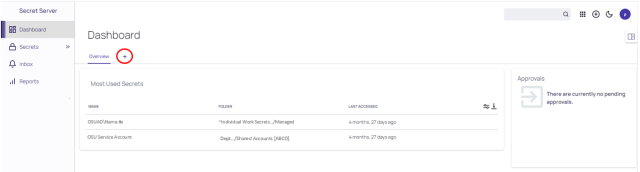
Enter a name for the new tab and click the Confirm New Tab button.

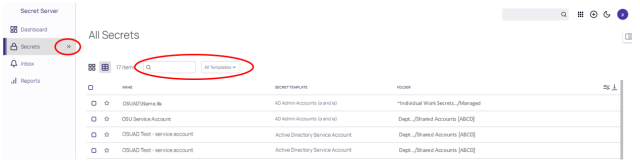
The Secrets Tab displays all secrets to which you have permissions. Secrets can be searched or filtered using the search and filter options at the top, or by expanding Secrets Tab and selecting individual folders from the folder tree on the left.
Create a Secret
- Select the folder to store the secret.
Click the plus symbol.
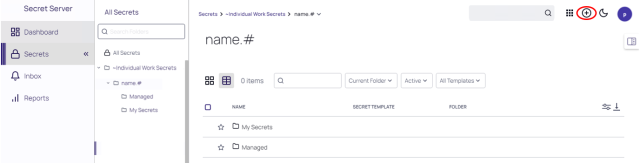
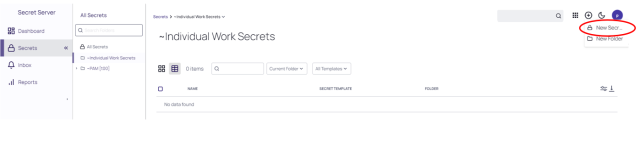
Select New Secret.
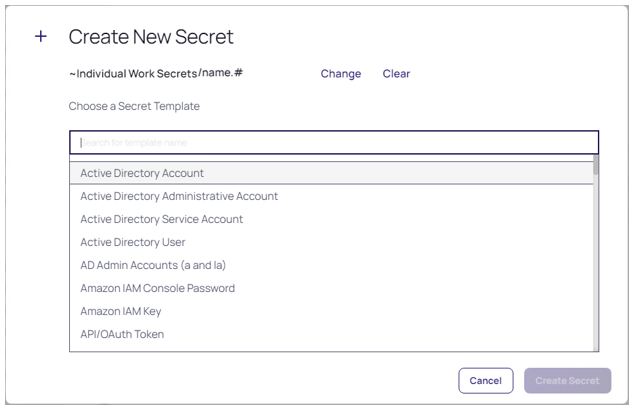
Select the appropriate Secret Template from the list.
Change Password
Information on the available options for changing passwords can be found in the Change a Password job aid.
Folder Types
PAM contains two main folder types: Individual Work Secret Folders (IWF) and Shared Folders.
Individual Work Secret Folders
Individual Work Secret Folders (IWF) are created for each user. A user’s IWF is named with the user’s Name.#. Each user can create and manage sub-folders within their own IWF.
Creating a IWF sub-folder
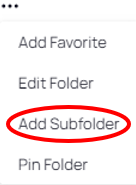
To create a sub-folder, right click on the folder name in the left-hand navigation panel, or on the down arrow in the breadcrumb navigation and select Edit Folder or Add Sub-Folder.
Secrets in the IWF cannot be shared with other users. To share a secret, move it to a shared folder to which both users have access. The Managed folder inside of each IWF has special permissions and users cannot move or share these secrets.
Shared Folders
Shared Folders are organized by College or academic unit. Sub-folders are typically organized by department, team, or service. Shared Folders are created and managed in GMS by your PAM Access Manager. Each folder is assigned a Folder Code, a unique, alpha-numeric string in square brackets following the folder name. Each Folder Code contains the code of the parent folder.
Secrets in Shared Folders are visible to all users who have been granted Edit, User, or View permissions on that folder. Permission is maintained by the Access Manager for your unit. If you do not know who the Access Manager is, please contact your Security Coordinator or PAMSupport@osu.edu.
Secret Server Accessibility Statement
If you have a disability or use assistive technology, you will experience difficulty accessing this application. Please contact us for assistance by calling the Accessibility Helpline at 614-292-3307.