The PAM system contains many features. Some of the Advanced features are documented here.
For additional support email pamsupport@osu.edu
Available Password Changers
The following account types support automatic password changing
- Active Directory
- E-directory (LDAP)
- Carmen Local Account (instructure.com)
- Code42 (CrashPlan)
- Linux account
- Linux accounts using SSH
- Linux SSH keys
- AWS Redshift user
- Security Center (Tenable)
- SQL users
- Windows Local user
Additional password changers are available but not active. Contact pamsupport@osu.edu to enquire about additional password changers.
Custom Password changers can easily be written for many applications with REST APIs. To create a custom password changer see the documentation and examples at https://code.osu.edu/pam/code
Available Dependency Scripts
Dependency Scripts run immediately after a password rotation, and are used to update the password on a client system or configuration item.
- GitLab Environment Variable (Code.OSU.EDU)
- IIS Application Pool
- Remote File
- Scheduled Task
- SSH Key
- Windows Service
- Trigger Remote Powershell Script
Account Checkout
Account Checkout ensures a secret is only accessed by one user at a time. This feature is generally refereed to as break-glass access. Account Checkout can be used to protect highly privileged accounts or prevent password sharing. Checkout is typically enforced via secret policy. The default checkout policy turns on: auto-change, checkout, requires comment, and sets a default check-out duration. The Checkout duration can be custom configured.
After expiration of the checkout duration, or after forced check-in, the password will be expired and a remote password change will be queued as configured in Configure Remote Password Changing.
- Navigate to your service’s folder on the left side of the screen and expand it.
All available accounts will be shown in the middle of the screen now.
Optional Step:
a. Click on the Settings icon if you’d like to add “Checked Out” as a column so you can easily see which accounts are checked out.
b. Check “Checked Out” and click Save to add it as a column.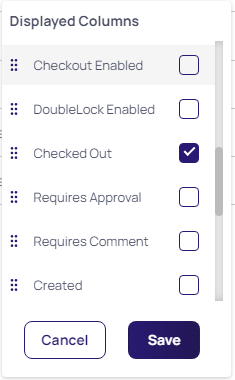
Click on the display name of the available account you want to check out.
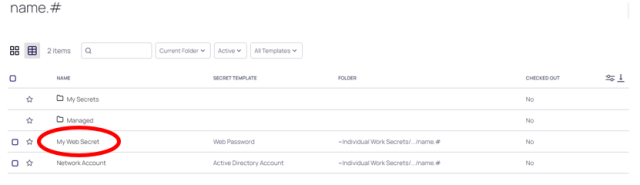
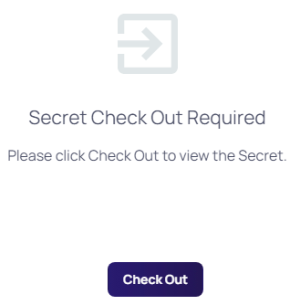
Click the Checkout button.
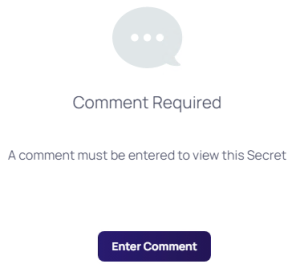
Click the Enter Comment button, and enter a reason for checkout.
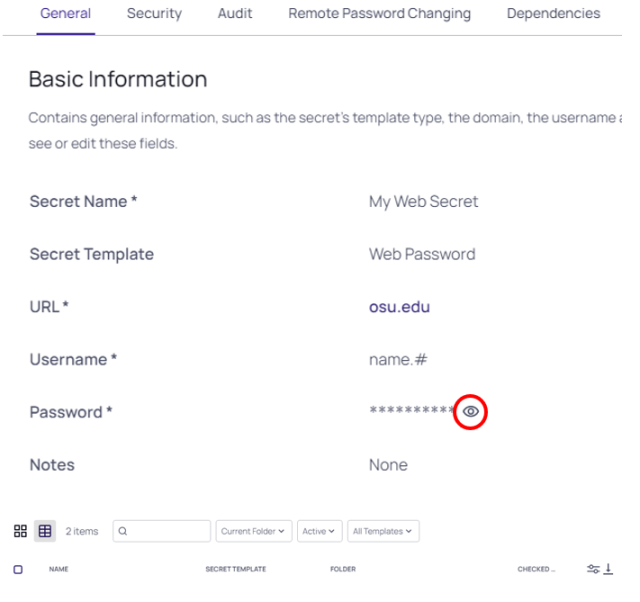
Click the Eye icon to unmask the password.
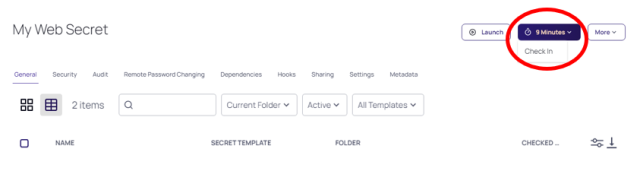
Once the customer is finished, click Check-in or allow the checkout duration to expire when finished with the secret.
Comment Required on View
Users can be required to enter a comment before viewing or editing a secret. This feature is most frequently used with Account Checkout.
Secret Access Approval
Users can be required to obtain Access Approval from a manager or other user before accessing a secret.
Email Notifications
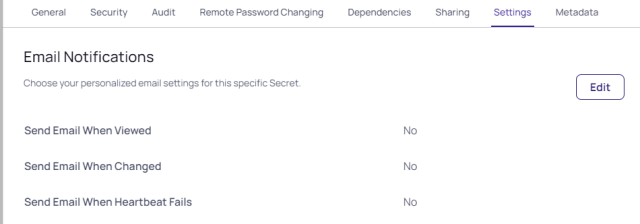
Users can receive email notifications for Secret View, Secret Change or Heartbeat failure.
These settings can be enabled for a specific secret on secret's Settings tab, or for all secrets a user has access to in User Preferences.
Import Secrets
Secret Server discontinued support for import of secrets in bulk. Instead users can utilize Secret Server's REST API to create secrets in bulk. To successfully create secrets via the API, the user must have the “Edit” permission on the destination folder(s).
A sample PowerShell script is available at https://code.osu.edu/pam/code/-/blob/master/Powershell_Examples/Upload-SecretsByTemplate.ps1
To use this script:
- Create a secret of the same template type in the folder you plan on importing to.
Use Invoke-RestMethod -Method Get -URI "
URL/api/v1/secrets/URL/api/v1/secrets/URL/api/v1/secrets/SID" to get the sample secret's data model.
- Edit the post body to match the secret field values.
- Create a CSV containing secrets to import with the columns: Name, FolderId, SiteId, and one column for each field in items.
- Set values for $TemplateID, $CSVPath, and $URL.
- Run Script.
If you are not comfortable using this process, please contact pamsupport@osu.edu for assistance.
Users wanting to use a different scripting language can find the REST Documentation in the help menu at the top right of any Secret Server page.
Web Password Filler
The Web Password Filler allows access to your secrets directly in the plugin. The extension automatically identifies the existence of credential fields and will automatically populate them based on existing Secrets, as well as identifying manual entry of new credentials in a web page, offering to save them as a secret.
You can download the Web Password Filler directly from your browser's extension store using the links below.
After installing the extension, configure the following settings within the Secret Server extension:
- Secret Server URL = https://pam.osu.edu/secretserver
Domain = BCD
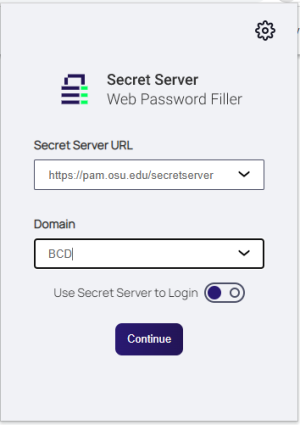
When prompted, login using your OSU Name.# and password, then complete two-factor authentication.
Secret Launcher
Secret Launchers allow a user to launch an RDP or SSH session without exposing the credential to the user. Custom launchers are available. Contact pamsupport@osu.edu for additional information on creating custom launchers.
Session Recording
Session Recording is advanced feature using RDP and SSH launchers. When configured, user sessions can be recorded when launched through a secret launcher.
Links to Additional Resources
For additional support email pamsupport@osu.edu
Additional Vendor Documentation
Additional vendor documentation is available at: https://docs.delinea.com/online-help/secret-server/start.htm To request access for private articles please contact PAMsupport@osu.edu
Vendor Provided Code Examples
Thycotic provides some code examples on their github here: https://github.com/thycotic
OSU Provided Code Examples
OSU specific code examples are collected here: https://code.osu.edu/pam/code Please feel free to merge your additional code examples to that repo.
Managed PAM Script Repo
Managed scripts including Password Change and heartbeat scripts can be found here: https://code.osu.edu/pam/managed-scripts To review or submit your own password changer please use the fork/merge process in that repo.