Manually Change a Password
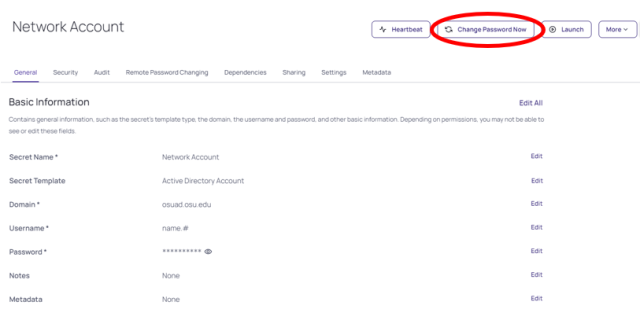
- Open the appropriate secret in Privileged Access Management (PAM).
Click the Change Password Now button in the top right of the page.
The referenced media source is missing and needs to be re-embedded.When prompted for the next password, select Randomly Generated or Manual. Randomly generated passwords are recommended, as they will automatically meet any password requirements and be more secure.

- When selecting Manual, you may need to click the edit icon before entering a new password.
- As you manually enter a new password, an onscreen prompt will appear indicating if you have met the password complexity requirements set on the secret.
- Password complexity is set by the secret template used on the secret and may vary.
Click the Change Password button.

- Secret Server will change the password and attempt to heartbeat the secret. Heartbeat is the process of verifying the password is valid. This process may take a moment to complete.
Automatically Change a Password
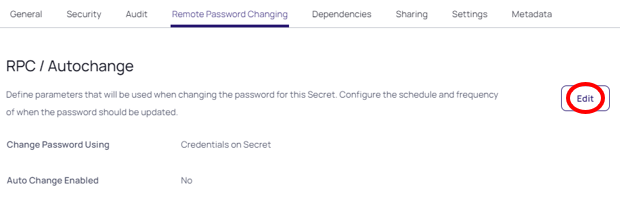
Secrets can be configured to auto change the password when the expiration is reached. To configure auto change, navigate to the Remote Password Changing tab and select Edit under RPC/Autochange.
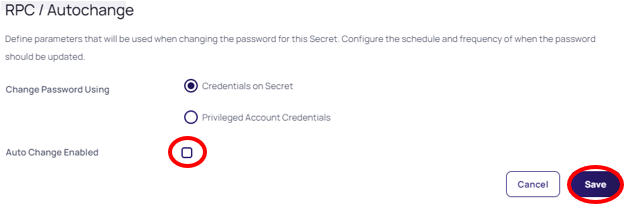
Then check the box for Auto Change Enabled and click Save.
Credentials Used to Change a Password
Secrets can be configured to use their own credentials to change the password or a privileged account. When a secret is created, it uses its own credentials for password changing by default, unless enforced by a policy.
To configure the credentials used on a secret, navigate to the Remote Password Changing tab and select Edit under RPC/Autochange.
Then select the option for Privileged Account Credentials and select the account to be used for password changing.

Once the credentials have be selected, click Save.
Edit a Password (Without Remote Password Change)
If remote password changing is not available, or the password value on the secret is not in sync with the target system, the password field can be edited manually. A manual edit does not change the password on the remote system.
- Open the appropriate secret in PAM.
- Click the blue edit link to the right of the password field.
- Enter the new value and click save.
Bulk Password Change
Secret Server allows users to take bulk actions on one or more secrets simultaneously.
Select one or more secrets and click the Bulk Actions button.
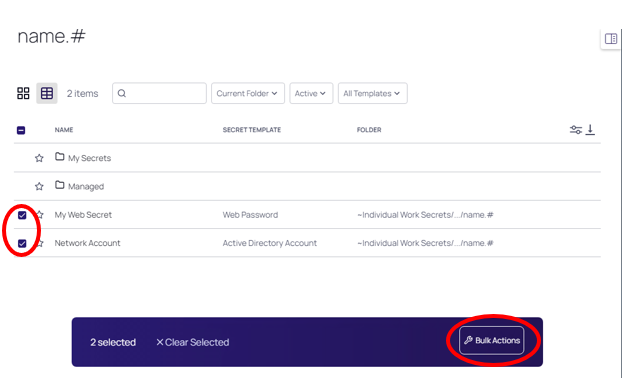
Select Change Password Remotely.
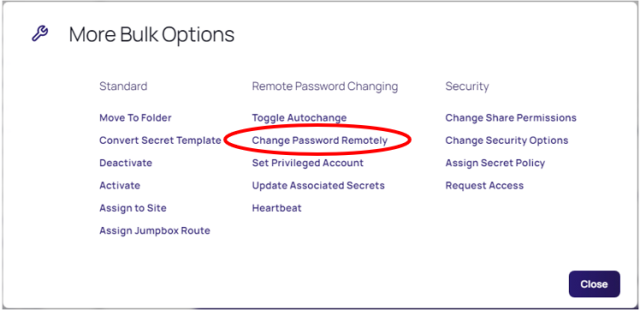
- Select the option for a Randomly Generated or Manual password change.
Troubleshoot a Password Change
When troubleshooting a failed password change, please ensure you are meeting the password complexity requirements. Using the randomly generated password option is a quick and easy way to ensure the complexity is being met. If you are manually entering a password, ensure you verify that all required characters are included.
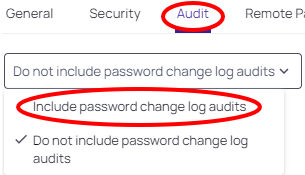
Additional information can be found under the Audit tab. To include audit logs for password changes, click the dropdown and select Include password change log audits.
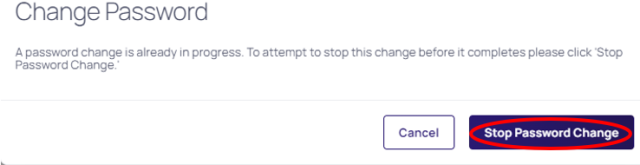
To stop a password change, click the Stop Password Change button on the top right, and select Stop Password Change.
If you are unable to resolve a failed password change, please contact IT Help Desk with one of the following methods:
- Phone: 614-688-4357 (HELP)
- Email: ServiceDesk@osu.edu
- Self Service and Chat Support: go.osu.edu/IT