The following support articles describes the Access Manager role, managing permissions to shared folder, creating shared folders, and best practices.
Access and folder creation is managed through Group Management Services (GMS).
For additional support, contact the PAM support team by emailing PAMSupport@osu.edu.
Additional GMS support documentation can be found at: go.osu.edu/gms-help
The PAM Access Manager Role
The Access Manager role is role of the PAM service that uses the Group Management Service (GMS) to implement Access Management at a folder level.
Access Managers can perform the following Actions:
Creating New Shared FoldersShared folders are accessible by multiple users, and are created in GMS.Managing Shared Folder UsersShared folder users may be assigned access roles for each folder.Managing the Access Managers RoleAccess Managers can self-manage the Access Manager role for their assigned folders.
The Access Manager Role does not have the ability to:
- Delete PAM folders
- Rename PAM folder
- Add/Remove user’s access to Individual work folders
Access Manager Responsibilities
Access Managers are responsible for managing user access and permissions to the secrets that reside in the folders for which they are Access managers. These responsibilities include complying with all applicable OSU ISCR controls, including but not limited to DAT2.2.1 and IT5.2.1.
DAT2.2.1 Access Management Organizations must manage access to institutional data to ensure that:
- Only authorized users have access;
- Adhere to the principle of least privilege so authorized users only have access to the data they need to perform authorized tasks; and
- Authorized access is consistent with the Institutional Data Policy.
User access must be reviewed to ensure that access is consistent with operational work requirements. Unnecessary access must be removed.
User access must be reviewed and approved by management annually, after major organizational changes, and after major technological changes.
Description of PAM User Roles
User
The User role allows users to view the full details of a secret, including the password, password history, and audit log for the secret. The user does not have permission to add, edit or delete secrets.
Edit
The Edit role allows users to add, edit and delete secrets. The edit role includes all permission from the user role, plus the Editor can; expose, change, set, and rotate passwords, and edit most secret fields.
View
The View role is a special role best suited for audit, reporting, and management. Users with the View role can see that a secret exists, but cannot access secret details, including the password and audit history.
Managing Shared Folder Users
- Log into GMS at https://go.osu.edu/gms
Using the global search in the top right of the page, search for the Folder Code (without brackets) assigned to the folder for which you are granting access.
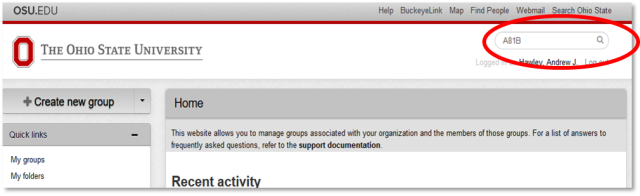
Search tip: the full folder code is always followed by a dash (-) in group names. For an exact Folder Code match search for "FolderCode-" to return all groups for the folder and all of its sub-folders search for "Foldercode"
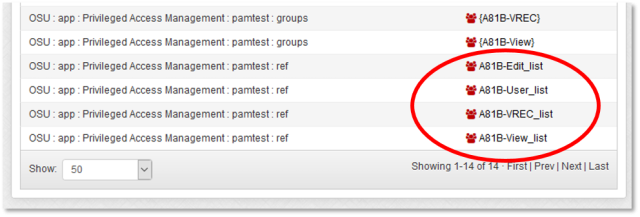
Open the appropriate group for the permission you want to grant.
FolderCode–Edit_list : for Edit rights
FolderCode–User_list : for User rights
FolderCode–View_list : for View rights
Click the Add Members button.
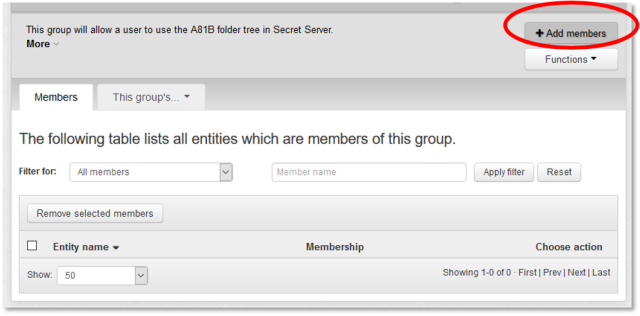
Type the users Name.n or @osu.edu email in the Member name or ID box.

Verify and select the user then click Add.

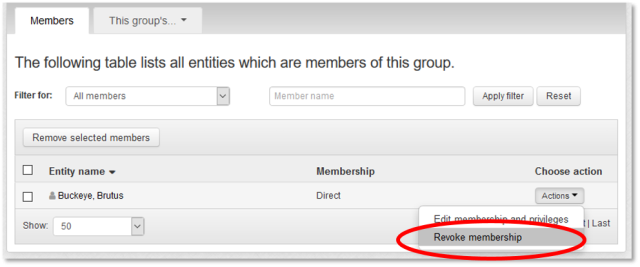
To remove a user, click Actions > Revoke Membership.
Creating New Shared Folders
- Log into GMS at https://go.osu.edu/gms
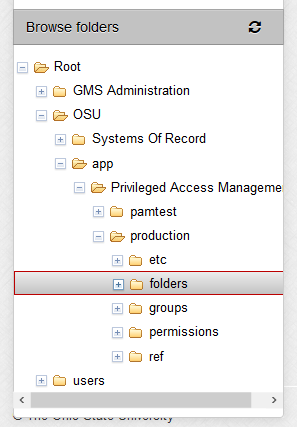
Using the folder tree in the left-hand panel, or global search, navigate to the appropriate parent folder.
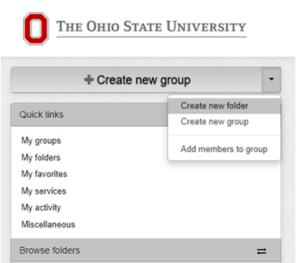
Once you have selected the folder in which you want to create the sub folder, click the dropdown next to the Create New Group button on the top left-hand side, and select Create New Folder.
- On the New Folder page enter the name of the new folder and click
Save.
NOTE: GMS will automatically create a new folder code and Folder ID. Optionally, you may enter a Folder Description. See Folder Naming Best Practices below for naming limits. - You will be automatically navigated to the new folder.
NOTE: the new folder ID. You will use this ID to grant permissions to this folder. By default, the new folder will inherit all user permissions from the parent folder.
Folder naming best practices
The PAM and GMS services have practical and technical limitations on folder naming. For the best experience we recommend the following:
- Folders should be created in a manner that mirrors the organizational structure of the users accessing the secrets, since each folder utilizes a unique access control.
- Folder structure is best limited to 6 levels deep.
- Folder names display best when limited to 30 characters or less.
Technical limitations
- Folder display names are truncated to 100 characters, not including the folder code.
- Folder display names of 100 characters are limited to the first eleven folder levels. All deeper folders must utilize shorter names to accommodate the folder code.
- Folder paths in GMS are limited to a total of 1024 characters.
Managing the Access Managers Role
For each PAM folder, GMS maintains a composite group named FolderCode-AccessManager. The composite's membership is FolderCode-AccessManager_list minus the FolderCode-Deny group. All members of FolderCode-AccessManager may add and remove other Access Managers, including themselves.
Follow the same procedure in Manage Shared Folder user roles for the appropriate FolderCode-AccessManager_list group.