After performing a search, you can save the results as a dashboard or a search as a report. Dashboards allow for multiple visuals on a single page, such as charts, graphs, reports etc. on one single page. Although reports can be included in dashboards, they can be saved by themselves. Reports are single searches that are referred back to or shared. They can include visualizations, statistics and/or events.
Access to Dashboards and Reports
Dashboards and Reports are accessed based on permissions, but available for anyone to create. Some options may not be accessible to you, if you believe you should have certain permissions, please email otdi-logsupport@osu.edu.
- Owner: Makes the dashboard and report private to the creator. These can be viewed in Settings > Searches, reports, and alerts.
- App: Displays the alert for all users of the app. These can be viewed in the selected App > Dashboards.
- All Apps: Displays the alert for all users of the Splunk instance. These can be viewed on your Homepage > Views.

Creating Dashboards or Reports
- Determine what search you want to track.
- Run the search and modify any output.
Select "Save As" > "Report" or "Dashboard."
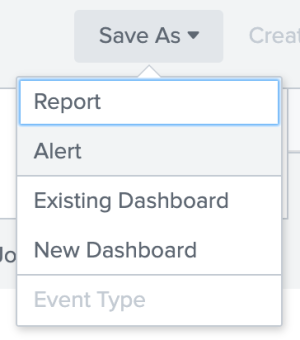
Edit Dashboards
- Open the App the Dashboard is associated with. If the Dashboard is not shared, go to your Homepage > Views.
In the Actions drop down, select Edit.
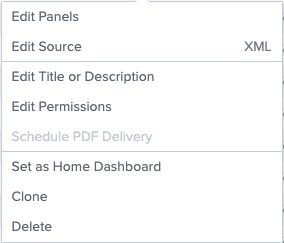
- Edit Panels: The GUI interface for reformatting the dashboard layout.
- Edit Source: The XML interface for reformatting the dashboard layout.
- Edit Title or Description: Change details.
- Edit Permissions: Change permissions to Owner, App, or All Apps.
- Set as Home Dashboard: Add to your Homepage.
- Clone: Duplicate the dashboard. This is useful when you want to make your own changes without changing the dashboard for others.
- Delete: If a dashboard is open to an App or All Apps, this is not recommended. Deleting a dashboard will delete it for all users.
- Edit as needed.
- Click "Save."
Edit Reports
- Open the App the Report is associated with. If the Report is not shared, go to Homepage > Reports.
- Determine the alert you want to edit.
In the Actions drop down, select Edit.
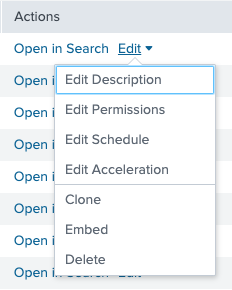
- Edit Description: Change details.
- Edit Permissions: Change permissions to Owner, App, or All Apps.
- Edit Schedule: Change the time range picker.
- Edit Acceleration: Might increase storage and processing costs but can return invalid results.
- Clone: Duplicate the report. This is useful when you want to make your own changes without changing the report for others.
- Embeded: Need to schedule the report first. Can be viewed by anyone with access to the web page which the embeded link is inserted.
- Delete: If a report is open to an App or All Apps, this is not recommended. Deleting a report will delete it for all users.
- Edit as needed.
- Click "Save."