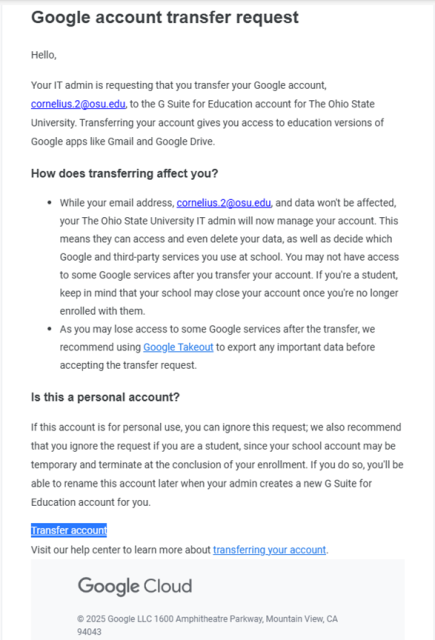
If you created a Google Account at some point prior to July 2025 using a lastname.#@osu.edu email address then that account is considered an “unmanaged” account and does not benefit from the protections and services of having an account managed by the Ohio State University. You may have created this account to access Google Analytics.
Anyone with an unmanaged account will need to go through the account transfer process. It is an easy, step by step process that Google will walk through. An email will be received advising that the account needs to be transferred.
In the email click the Transfer Account button located at the bottom of the email. You can scroll down to see a complete sample email.
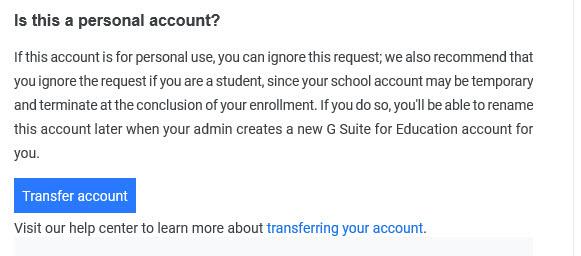
The default browser will open and display the log in screen for Google accounts. Enter the full Ohio State email address if necessary.
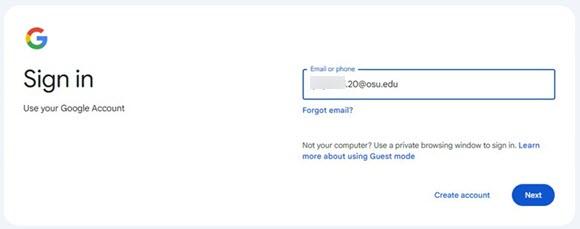
Walk through the verification process to log into the account. Google may display a security check up depending on how long it has been since the account has last been used and what browser you are using. The university does not promote use of one browser over one another, but the new Generative AI tools that are available are created by the two major browser companies Microsoft and Google. That means their AI tool works seamlessly in their browser. Consider using Google Chrome when using Gemini, but it is not required.
Enhanced browsing is a choice you may have, again depending upon the browser used. Either accept or decline.
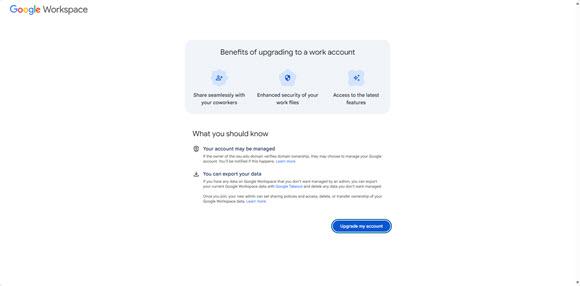
The transfer of the account will start when the Upgrade my account button is clicked. After this you cannot back out of the process. If you accept the invitation, you will lose access to data in apps that Ohio State will disable, such as Google Photos. To avoid losing access to your data, you will need to move files, photos and other data that you want to retain to alternative storage before we provision your account.
Click Upgrade my account when ready.
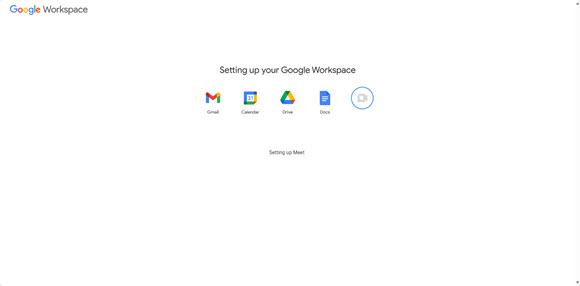
The screen will display the different Google product logos as Google sets up the appropriate Workspace depending on the account access.
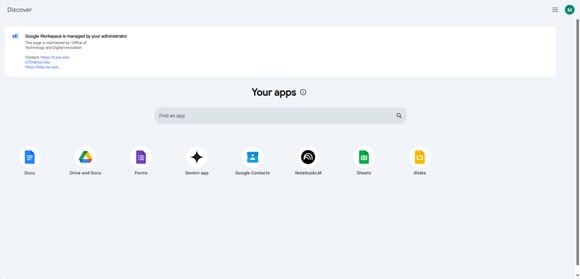
Once Google is done setting up the applications that the account has access to, Google Workspace will display. Select the icon of the Google application to be used, such as Gemini to use the Gemini Chat app.
Sample Email