A streamlined process for connecting an OTDI Owned or Managed PC or Mac to the VPN has been created. This will not work on your personally owned devices. This process requires you to walk through the set up once and then you will be able to connect to the VPN without having to enter a username and password every time.
When connecting using this method for the first time, start by opening the Cisco AnyConnect client.

Select vpn.service.osu.edu in the server field.
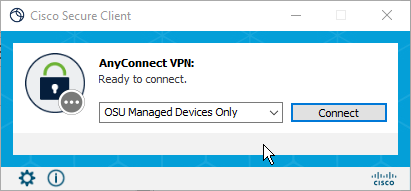
You will see a new listing titled OSU Managed Devices Only.
Select it and you should instantly connect.
Once you successfully connect you may receive a confirmation screen letting you know what this connection allows you to access.
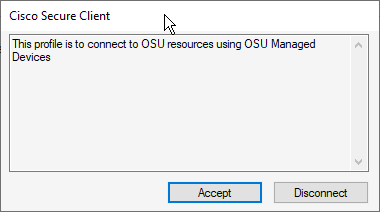
Click Accept to continue. This process will now allow you to easily connect to the VPN any time you want to.
For future connections to the VPN, you can simply open the Cisco AnyConnect Client, and choose the new OSU Managed Devices Only option. You will be immediately connected. You may have to accept the banner before the connection can be completed.
Your connection will last for 12 hours. Following the 12 hour period, you will need to reconnect by opening Cisco AnyConnect and choosing the OSU Managed Devices Only option. You will not need to reenter your credentials.
If you receive a certificate error or the OSU Managed Devices Only option does not show, follow the instructions in Troubleshooting connecting.