All active and inactive contacts, incidents, requests, equipment and ideas assigned to a particular faculty, staff or student in Service Now can be retrieved using the User Quick Find feature.
On the application navigator, select the Service Desk panel.
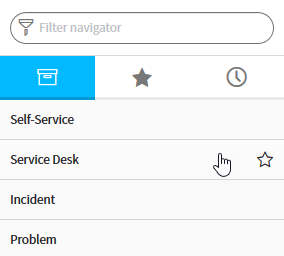
Select User Quick Find.

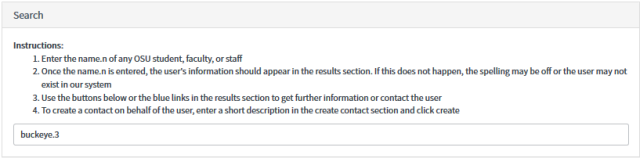
The screen will update showing the instruction on how to use User Quick Find. Locate the Search box. Enter the Ohio State Username (lastname.#) of the user you would like to locate.
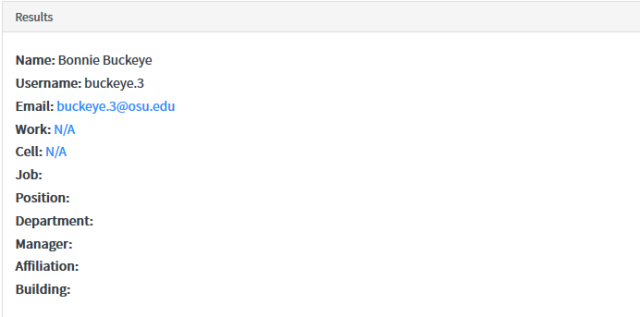
The user's information will appear in the results section. If there are no results, check the spelling or the user may not exist in Service Now.
The results may be narrowed down using different options. The Show/Hide panel can be used to narrow results down by activity date, contact items, request items, incidents, assigned equipment and ideas. From the drop-down menu select the time interval you wish to view.

Menu options include:
- Last 30 Days
- Last 3 Months
- Last 6 Months
- All Time
Click the Show inactive records checkbox if you wish to include inactive records.
Select the type of records, (contacts, items, incidents or equipment) you wish to view by clicking the appropriate Show button.

To hide a panel of records select the hide button.

In addition to finding records, for a specific individual, a contact can be created from an asset.
Select an asset name from the Assets section.

Select the Add to Contact button
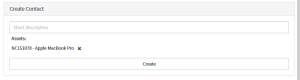
to the right of the asset. The asset appears in the Create Contact panel. Type a short description of the issue with the asset and select Create.