The navigation filter located at the very top of the navigation bar can be used to locate areas of the Service Knowledge Management System.


1. Click inside the Filter navigator and begin typing the name of the area you want to locate.

As you type, results begin to display options that are relevant to your search criteria.

2. Select the location you want to view.
Use the All apps button

to view all applications/panel
Use the Favorites button

to view favorites
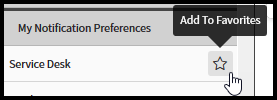
Go to the right hand area of any panel to add as a favorite.
Use the Your history button

to view recent browsing history.