After a Request Item or Incident record has been created and assigned to you or your group, you may need to search to find the record and make updates. From the navigation panel on the left hand side of the screen:
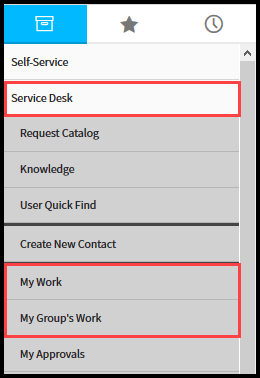
1. Locate the Service Desk panel
2. Select My Work or My Group's Work.
Any of the methods can be used to scan for the appropriate record. Each of these methods open a Record View list containing relevant items.
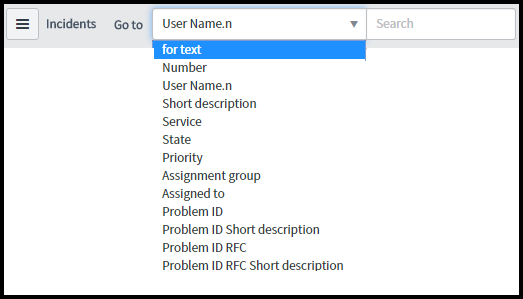
2. To search a list, select a field from the Go to drop-down menu.
Options include:
- User Name.n
- for text
- Number
- Short description
- Service
- Service
- State
- Priority
- Assignment group
- Assigned to
- Problem ID
- Problem ID Short description
- Problem ID RFC
- Problem ID RFC Short description
3. Type the search text and press Enter.
4. To sort a list, use one of the following methods:
Filter Types
A filter restricts what records appear in a list by providing a set of conditions each record must meet to be included in the list.
Breadcrumbs
Breadcrumbs offer a quick form of filter navigation. They are ordered from left to right, with the leftmost condition being the most general and the right most condition being the most specific.

Selecting a breadcrumb removes all of the conditions to its right.

Selecting the condition separator (>) before a condition removes only that condition.
Quick Filters
A list can be filtered using a Quick Filter. To quickly filter a list using a value ina field, right-click in the field and select Show Matching or Filter Out.

These functions add a most specific condition to the breadcrumb of the current filter.
Custom Filters

To create a filter:
Select the Show/hide filter icon

- Select the fields from the drop-down list.
- Select an operator from the drop-down list.
- Select or enter a value.
- Add or remove conditions to construct the desired filter.
To add a top level condition, click Add AND condition

or Add OR

condition on the condition builder tool bar.
To add dependent condition, click
Add AND condition or ADD OR condition
beside the condition.
To remove a condition, select Delete

beside the condition.
To specify the sort order of the results, select Add Sort

, then select a field to sort by and sort order.
Select Run

to apply the filter.
In addition to searching by field for text, you can also search individual columns in a list.
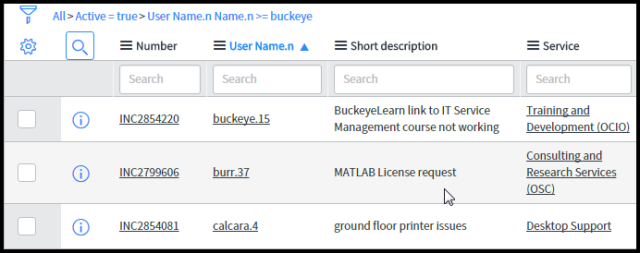
Expand the column headers and add a search field to each column by selecting the search icon

beside the personalize icon.

- To search single or multiple columns, enter the search text in the desired column search fields and press Enter.
Select the reference icon

to view a pop-up preview of the record that is referenced.
5. After locating and opening the record, add information to "Work Notes" and make any changes required.
6. Save the record using one of these methods:
Select the Save button

to keep changes and leave the record open.
Select Update button

to keep changes and return to the Contact form.