When viewing records from a list view, the update personalized list tool

enables users to customize columns.

1. Select the update personalized list tool

.
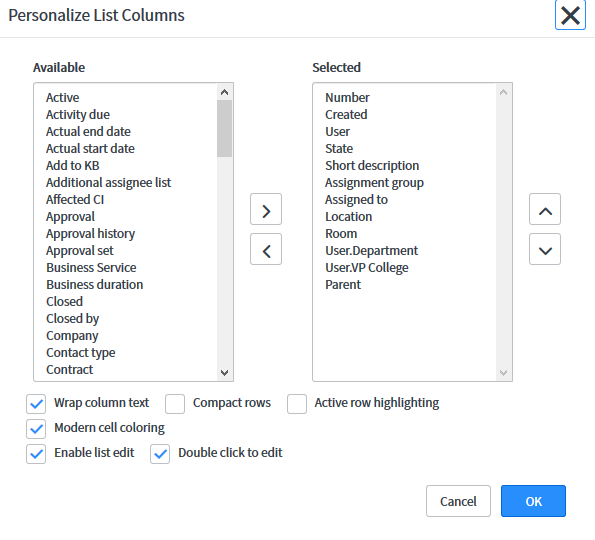
The personalized list dialog box will appear.
2. Select column(s) from either the Available or Selected list.
3. Select add button

to move selected columns to your personalized list or the remove button

to remove selected columns.
The move up button

or move down button

can selected to arrange the column order.
Repeat steps 2 and 3 as needed to achieve desired column(s).
4. Select the OK button

when complete.
The window will close and the list will refresh. The list will show the new column(s).
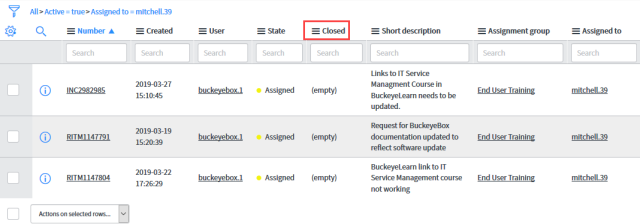
To return columns to the default settings.
1. Select the update personalized list tool

.
2. Select the Reset to column defaults button

.

If the Reset to Column Defaults button isn't visible then you are viewing the default columns.
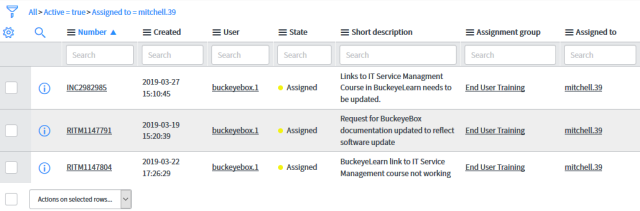
The window will close and the list will refresh. The list will now show the default columns.