This request item is used to Roll On or Roll Off employees who are MITS partners, including OTDI.
Initiate the Request
Start by visiting the Self Service Portal and logging in using your Ohio State username (lastname.#) and password. If you are having any trouble with your password please contact the IT Service Desk at 614-688-4357 and select option 3.
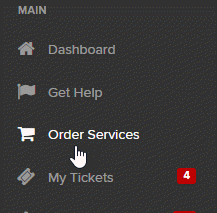
Once logged in, click on Order Services in the navigation bar on the left side of the screen.
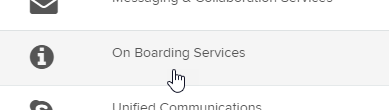
In the request catalog, click on the Onboarding Services category.
Next, click on Technology Roll On / Roll Off / Transfer request item to start your request.

The request item is a wizard that will walk you step by step through the request process.
The first section is about the needs of the request and starts with the hiring manager information. This is the person who will be responsible for tracking and managing the request and may not be the actual manager of the employee. The fields should be auto populated with the information of whoever is logged into the Self Service portal.
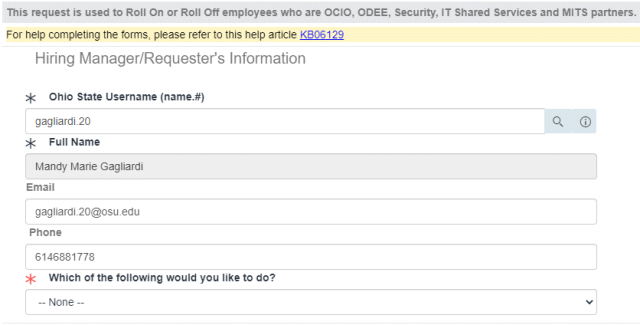
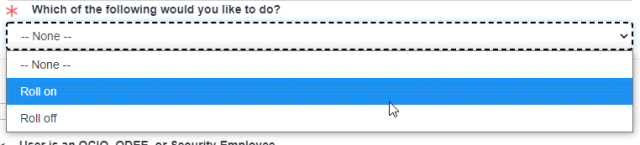
At the bottom of the Hiring Manager section there is a menu called Which of the following would you like to do? Drop open the menu and choose Roll On or Roll Off depending on what your request is.
Before entering a person into the system they SHOULD have an Ohio State username (lastname.#) created, however; if they do not, you can place a checkmark in the User Does Not have a Username (lastname.#) field. You will have to populate the Full Name field of the new employee manually. If the user does not yet have a username it can cause delays in the process so you should try to get the username if possible, for speed of service.
Roll On
When choosing to roll on an employee you will first need to check the box letting the system know if this person is new or transferring in from another area. The only difference is if you check yes that they are transferring in, you will have to enter in the name of the area they are transferring in from and the new department they will be in.
Starting with the Employee Information section the first question is User is an OCIO, ODEE or Security Employee. This is a yes or no field. If they ARE employed by any of those areas then choose Yes. If they are not, choose No. Enter the employee’s Ohio State username. This will populate the other fields. If the hiring manager fields or department are not filled out enter that information as well.
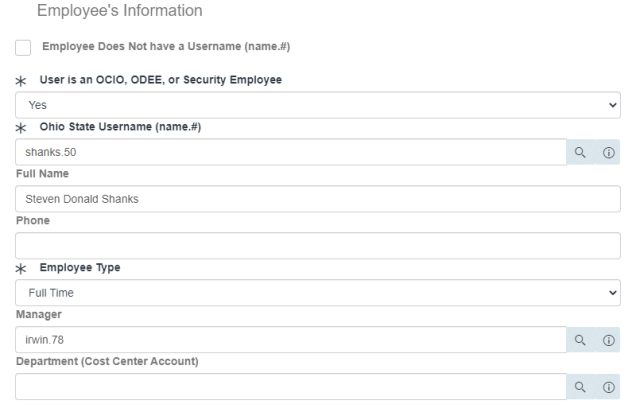
Next specify the Employee Type. Choose from the list. This is important because the options available to you for the employee with be determined by the employee type.

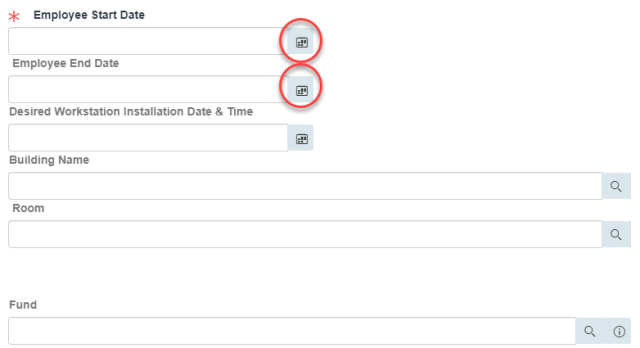
Next specify the start date of the employee you are rolling on. Click the calendar icon to the right of the date field and choose the appropriate date. It is best to give a 2-week lead. You will also specify a desired installation date and time for the employee’s workstation to be delivered and configured. Again, you will want to try to provide a two-week lead time whenever possible. Requests for specific dates will try to be met, however a technician will contact you with a confirmed appointment time within 5 business days. Also enter the Building name (if necessary) and room where the installation will occur. Enter the Fund numbers that will be used to pay for any necessary equipment.
Next you will specify which options on the New Hire checklist your roll on will need. Not all onboarding employees will need all these options. It will be up to the employee needs.
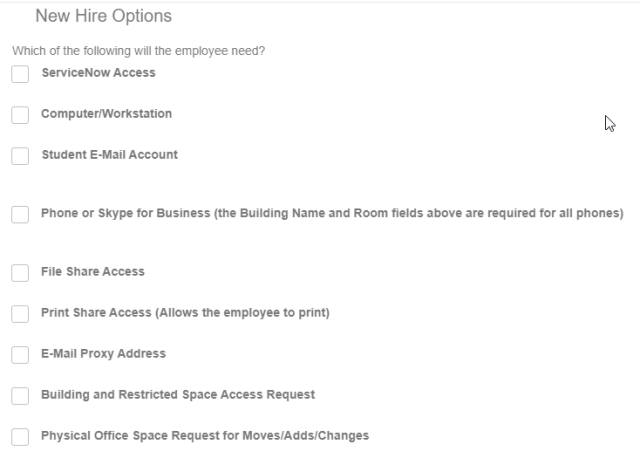
The items you choose on this list will control which options you will see on the remainder of the screens. These are prebuilt request items that have their own supporting documentation.
Service Now Access, checking this box will require you to specify exactly why the new employee will need access to Service Now and what it will be used for. This is a free form text field.

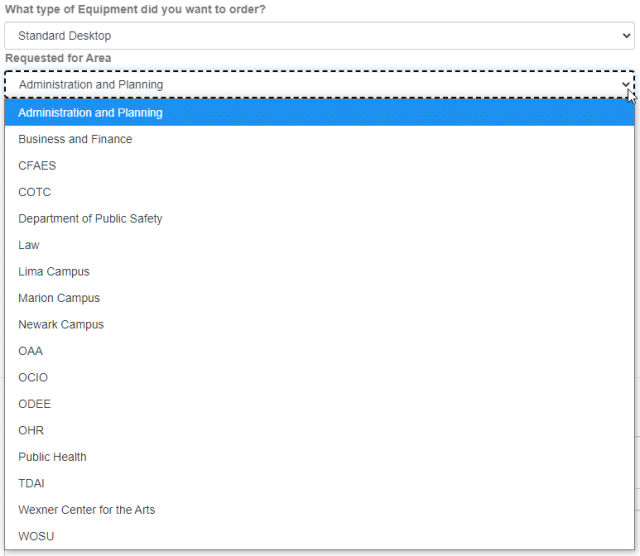
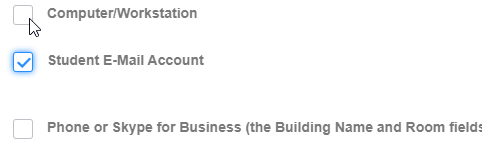
Computer Workstation, checking this box starts a computer request for the onboarding employee. Choose the device that you would like the employee to have and specify which area will be responsible for the equipment.

Student Email will start the processes of obtaining a student email account (lastname.#s@osu.edu). No additional fields will appear for you to fill out.
Phone or Skype for Business will start the process of obtaining either a desk phone or a Skype for Business phone if your area has migrated. No additional fields will appear for you to fill out. You must make certain the rest of the form has the appropriate Building Name and Room fields populated so this request can be made.
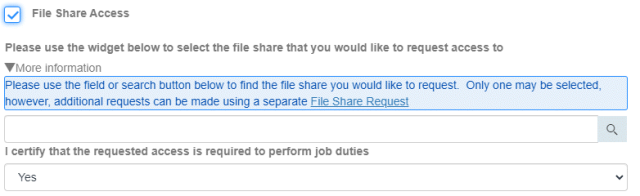
File Share Access is used to request access to network file shares that the employee may need. Enter the name of the File Share they need access to. You will also have to certify that the access requested is required to perform job duties.
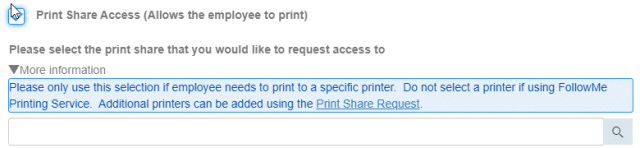
Print Share Access is used to request access to specific printers. Enter the name of the Print Share the employee will need to access.
E-Mail Proxy Address allows you to request a department specific email address (non @osu.edu) be added to your new employee’s account. This additional address is used to allow the user to continue to receive email sent to a departmental address in their lastname.#@osu.edu email account. All requests are subject to approval.

Building and Restricted Space Access Request is used to add access to building areas an employee may need to perform their job duties.
Physical Office Space Request for Moves/Adds/Changes is used to request physical office needs, such as desks, cubicles, etc.
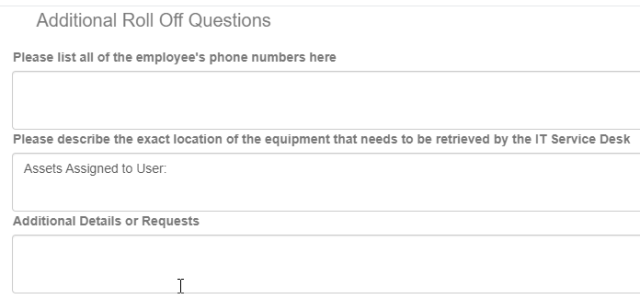
Additional Roll Off Questions
This section still appears when performing a Roll On request. These two fields will not need to be used when rolling on a new employee, however the last field Additional Details or Requests can be used to pass along any additional information that may be necessary to include in your onboarding process.
Click the Next button to continue.
The next screen will vary depending upon the options you selected on the previous screen. Click the Next Tab button to move through each form and provide all the information you can. The more information you provide, the faster and more complete the onboarding process will be. If at any time you need to go back to the first screen and make any changes to the Hire Checklist you may click the Describe Needs button at the bottom to move back to the previous screen.
OCIO Workstation Request tab should be completed already. This will allow you to see what is currently being requested, make any changes to the request, see the standard configuration of equipment and add any special requests. If everything is completed or updated, click the Next Tab button to move forward.
University E-Mail Service tab will verify if the new employee is eligible for a Student Email account. If they are eligible you will see a green box allowing them to have one, otherwise a large red box will appear showing they are not eligible for a student email account. Click the Next Tab button to move forward.
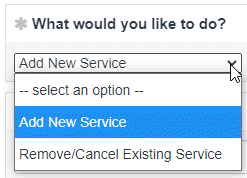
University Skype Request will allow you to specify details for the employee’s Skype account. The top section should be completed from the initial form but verify all information for accuracy. Be certain to fill in the necessary Cost Center if that has not been done. In the What would you like to do? field drop open the menu and choose Add New Service and verify the employees username appears in the For Whom field.
Next specify what type of Skype service you are requesting. The default should be Skype since this is for an individual employee. Confirm the correct Location and Room are specified.

There are two additional features of Skype that you may want included on the employees account. International Long Distance is checked if you would like the employee to be able to call outside of the United States using their Skype for Business account. IMAutoArchive is turned on if you would like the employee to have Conversation History turned on in Skype for Business.

Do not specify an answer for Should the device be picked up. This is for rolling off an employee and not applicable to onboarding.
Finally specify a requested start date for the Skype for Business account.
Click the Next Tab button to move forward.
File Share – Request Access is used to specify file shares that an employee may need access to. Please see File Shares – Managing Your File Shares for detailed information on File Shares and requesting access.
Print Shares – Request Access is used to specify the printers the employee may need access to. Please see Print Shares – Managing Your Print Shares for detailed information on Print Shares and requesting access.
University E-mail Service - Department Proxy Address Request is where you can provide more details on the departmental proxy request.
Building and Restricted Space is used to provide more details into the building access request you are making for the employee. You will need to fill this out as completely as possible to not delay their access.
Physical Office Space Request is used to complete the request for office space and equipment (other than workstations). This can be used to request movement of space and realignment of space.
Click Checkout once the tabs have been completed.
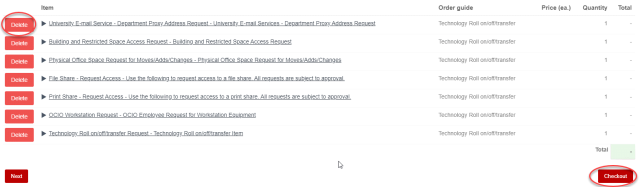
The Checkout screen will show each of the items you have requested for the new employee and provide you the ability to delete any items you may have requested by mistake. To delete an item, click the big red Delete button to the left of the item. If everything looks good click the Checkout button to continue.
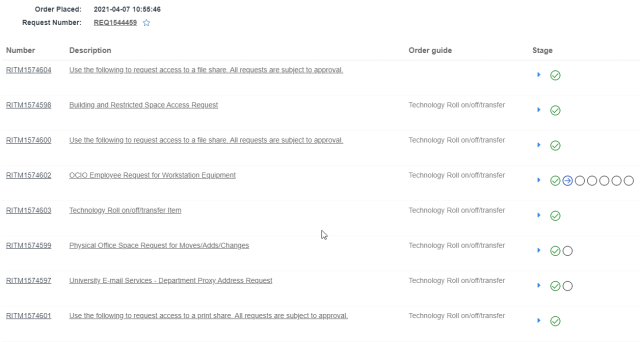
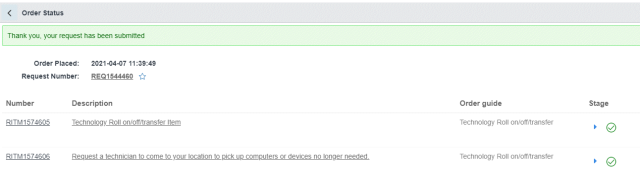
You will be provided with the REQ number of the request and the RITM numbers of each item so you may monitor the progress of the roll on in Self Service.
Roll Off
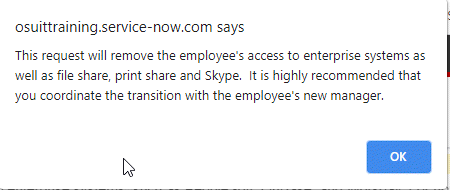
When choosing to roll off an employee you will first need to check the box letting the system know if this person is transferring out to another area. The only difference is if you check yes that they are transferring out, you will receive a message telling you that the request will remove access to enterprise systems, file shares and print shares in addition to Skype for Business.
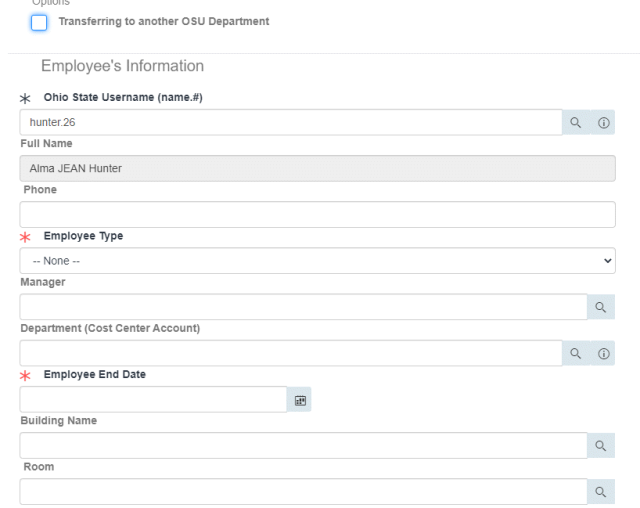
The Employee Information section needs to be completed as thoroughly as possible.
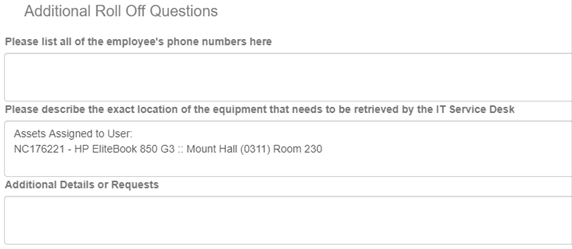
The Additional Roll Off Questions section allows you to provide additional information to the team to assist in rolling the employee off of the systems and obtaining any assets assigned to them. List out any phone numbers assigned, the location of the user’s assets should be populated already but need to be confirmed and there is an open text field available to provide any information you feel may be necessary.
Once the form has been completed click Next to move forward.
The next screen consists of two tabs, one for Technology Roll on/off/transfer and one for Computer Pickup Request. Click the Next Tab button to move forward. The second tab will allow you to specify any details pertaining to the assets to be picked up. If everything is accurate click the Checkout button.
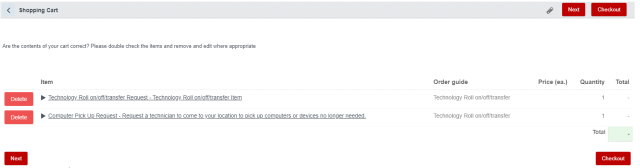
The Checkout screen will show each of the items you have requested for the employee and provide you the ability to delete any items you may have requested by mistake by click the big red Delete button to the left of the item. If everything looks good click the Checkout button to continue.
The final screen is your Order Summary that will provide you with the REQ and RITM numbers to track the request through the system.
Need Help?
We are here for you. For technical support, please contact the IT Service Desk:
- Phone 614-688-4357 (HELP)
- Email servicedesk@osu.edu
- Online go.osu.edu/it
- In Person BuckeyeBar locations
Important Information
- These instructions were created for the Technology Roll On and Roll Off request item within ServiceNow for onboarding, off-boarding or transferring an employee.