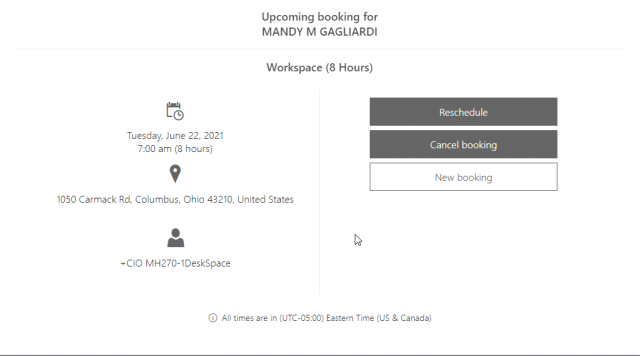
This job aid will walk you through utilizing the Mount Hall Space Reservation system to schedule desk and or meeting space for hybrid employees.
Start by visiting go.osu.edu/mounthallspace and log in using your Ohio State Username and password. You will also need to authenticate through Duo.
Space can be schedule for an individual or for a group. An individual can request an 8 hour block of space and a group can be scheduled for either 4 or 8 hour spaces. After logging in you will see 4 options under Services.
- Workspace (8 hours) is selected when you would like personal office space for yourself for 8 hours of time.
- Team Space (4 hours) is selected when you would like a space within Mount Hall for small group work.
- Team Space (8 hours) is selected when you would like a space within Mount Hall for small group work.
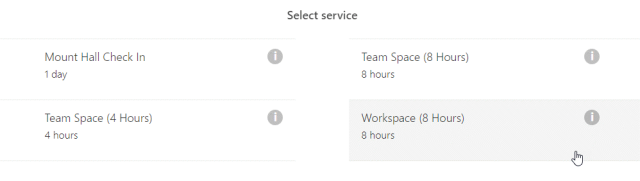
Start by choosing the space you would like to reserve.
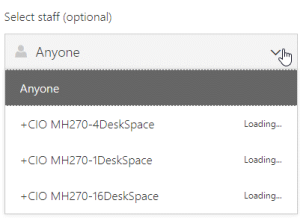
This will open the Select Time options below. Choose the date that you would like to schedule on the interactive calendar. To the right of the calendar there is a drop down menu called Select Staff. Due to the limitations of the system, Staff is what the space is called. Drop open the menu and a list of available spaces to reserve will appear.
Once the space has been selected the bottom will update asking you to provide additional details. Enter any additional details that are requested, such as if you are scheduling team space enter any additional requests your team may need. Enter your full name into the Name field and your Ohio State Email address in the email field. This is the email address where your confirmation will the sent. You will also have to agree to:
- Take your temperature.
- Log in to the health reporting tool via compass.osu.edu or the Ohio State app.
- Record your temperature and answer other health reporting questions.
- Receive your daily health passport. This passport is good for entry to all open buildings during the day it was submitted.
- RED = Stay home
- GREEN = Clear to come to campus
- YELLOW = Time to report
Once everything has been agreed to and filled out completely click the Book button to continue.
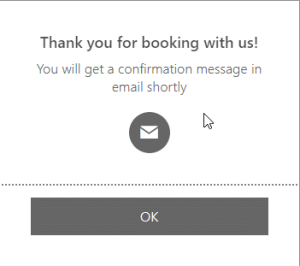
Once the system has processed the request you will receive a confirmation pop up advising you that a confirmation email will be sent to you.
The final screen will show you your upcoming booking, allow you to reschedule or cancel the booking or create another booking.