Contacts will become either Requests or Incidents. If a contact is to become an incident then it will not come from the service catalog. This page will walk you through creating an incident.
Select the 'Create Incident' button

.
Once the incident record is created and assigned to the appropriate group, much of the information on the Contact form will be carried over to the Incident Record. This includes:
- Username (name.#)
- Name
- OSU ID
- Phone Number
- Contact email
- Location (Building Name)
- Room Number
- Service Provider
- Service Category
- Service
- Assignment Group
- Short Description
- Attachments
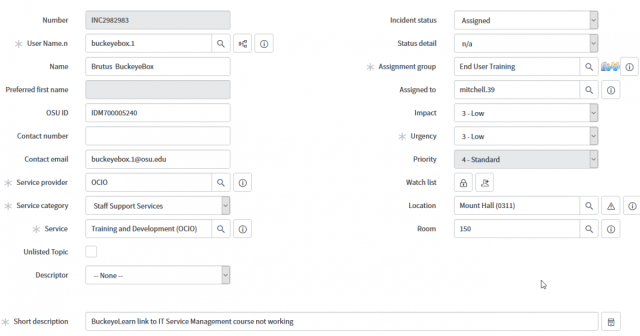
The Incident and Customer Contact record numbers appear at the top of the screen. Below is a line showing the Parents with links to the Contact record and the Request.
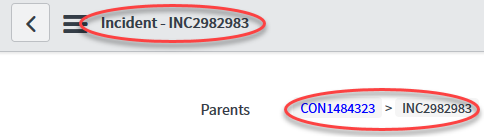
Verify the Contact information (e.g., User email, Phone, Location, and /or Room Number)
Select the Descriptor field and choose an option from the drop-down menu. Options include:
- Connectivity
- Event
- Functionality
- Degradation
- Outage
- Performance
- Preventive Maintenance
- Service Request
The value of the Descriptor field may need to be changed as the Incident record is worked. Use your best judgement when choosing a descriptor.
Change the Incident status according to the current state of the incident. Values for this field are:
- Assigned: This status is used when giving an incident to a specific group or individual; it does not mean the assigned group has viewed the incident, just that it has been assigned.
- Rejected/Assigned: This status is used to indicate the record was either assigned to the wrong group or the incident record was incomplete and more is needed. This option will send the record back to the last person who touched it. Use the 'Status Detail" field to indicate where the group was incorrect or if their is insufficient detail.
- Work in Progress: By default, the incident always starts with this status. Use it to indicate someone in your group is actively working on the incident.
- Pending: The state is used when more information is needed from either the customer or from another OCIO staff member or third-party supplier.
- Resolved: This state is used when there is no further work that can be done by an OCIO staff member. Ideally this means that the 'Status Detail field can be set to "Solved Permanently", meaning that the OCIO was able to restore service, however; this is not always the case. When the status is Resolved, the following options appear in the "Status Detail" field.
- Closed: A record is closed with the customer has confirmed the incident has been resolved satisfactorily and the agreed-upon service has resumed.
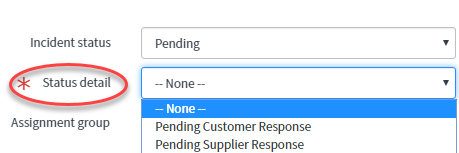
To differentiate the reason for the Pending status, select Pending Customer Response or Pending Supplier Response from the "Status Detail" field.
| Status Detail | Description |
|---|---|
| Solved (Work Around) | No permanent fix is available, but a method to reduce the impact of the incident has been found. |
| Solved Permanently | A permanent fix for the incident has been found. |
| Not Solved (Not Reproducible) | OCIO is unable to reproduce the incident. |
| Not Solved (Too Costly) | It would be too expensive to fix the incident. |
| Customer Canceled Request | The customer reports there is no longer any need for assistance. |
| No Response from Customer | The customer has not responded to attempts at follow-up. |
| Spam/Duplicate | The incident was either generated by spam email or is duplicate of an existing incident. |
| External Referral | The incident required referral outside of the area. |
Records pass into a Closed state after 48 hours in Resolved state.
Records entering the Closed state trigger an email which is a customer satisfaction survey to the customer.
If it is known who will be assigned the incident, enter the person's username (lastname.#) in the 'Assigned to' field. If the username is unknown do not assign it to a person, just the group.
Review the Impact/Urgency/Priority of the Incident.
By default, new incidents are assigned an "Impact" and "Urgency" of 3. The " Priority" of the incident is determined by evaluating the impact and urgency of the Incident.
The Priority of the incident is determined by evaluating the impact and urgency according to these guidelines:
- Impact is gauged by how many users have been affected. One user, a group of users, a department of users or the entire University audience.
- Urgency is the speed at which action must take place to prevent an elevated impact. Different services have a different level of urgency.
- Priority takes into consideration both impact and urgency to determine which incidents should be addressed first. Priority is set by the impact and urgency only.
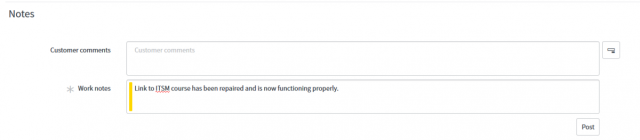
Enter information about steps taken to address the incident in the Work Notes field. Select Post when complete.
Use the Customer Comments field to communicate progress with the customer.
If necessary, include attachments with the Incident record by selecting the

Manage Attachments button.
Save the record using one of these methods:
Select the Save button

to keep changes and leave the record open.
Select Update button

to keep changes and return to the Contact form.