Contacts will become either Requests or Incidents. If a contact is to become a Request it can be either a Service Request through the Service Catalog or a Generic Request. This page will walk you through creating a Generic Request.
If a Generic request is to be created click the Create Generic Request button.
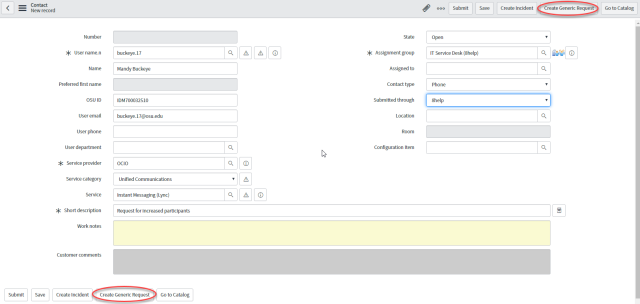
A Requested Item (RITM) record will be created and assigned to the appropriate group. Information entered on the Contact form will be carried over to the Request Item. This includes:
- Username.n
- Name
- User email
- User phone
- Location (Building)
- Room Number
- Service
- Assignment Group
- Work Notes
- Short Description
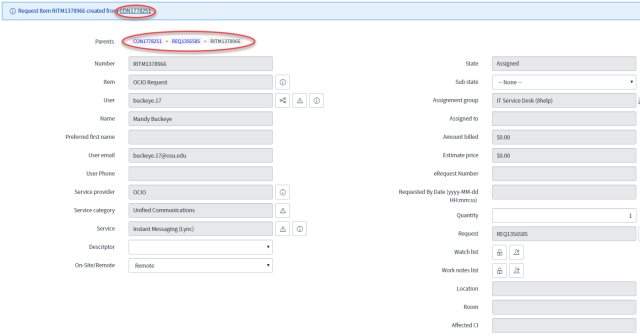
The Request Item and Customer Contact record numbers appear at the top of the screen. If the record is updated and saved, this link will disappear.
Review the Contact information (e.g., User email, Phone, Location, and / or Room Number) and verify the information is correct and update if necessary.
Enter the eRequest Number in the eRequest Number field if necessary.
Attachments can be included with the Requested Item record by selecting the Attachment button

in the upper-right corner of the screen. Simply browse to the location of the file, select it, and then select the Attach button in the dialog box.
Change the status in the State field according to the current state of the request. Values for this field are:
- Assigned: This is the initial state of any request. It does not necessarily indicate anyone has looked at the request. When a request received by your group, leave the State as is if you intend to assign the record to a specific individual.
- Work in Progress: This state is used to indicate someone in your group is currently working on the request.
- Pending: This state is used when more information is needed from either the customer or from another area or department.
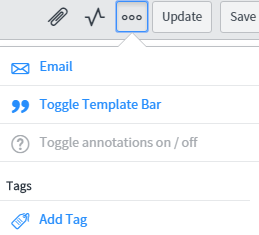
If the person working with the Request is unable to reach a customer by phone, select the Toggle Navigator

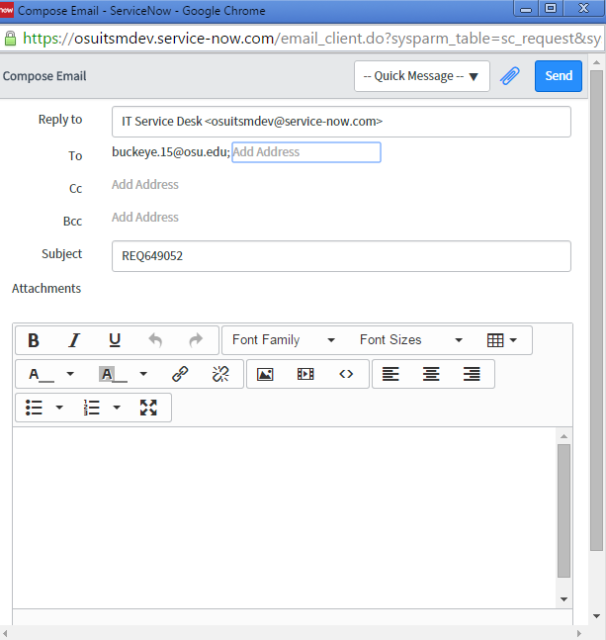
button in the top-right corner of the screen (if necessary) and select Email. The email allows for attachments. When sending an email to the customer, place the Requested Item in a 'Pending' state. When the customer replies the state will switch back to "Assigned".
The email form is shown below:

Use the work notes field to record information about work that has been done on the request.
Include enough information so that another person assigned the request will be able to pick up where you left off.
Use the Customer comments field to communicate progress with the customer.
If instructions need to be provided to assist with future requests, include them in this area. Customers can view comments from the OCIO Self-Service site.
Save the record using one of these methods:
Closed Rejected: This state is used when a payment is pending for a request and more than 30 days have passed without receipt of an eRequest. It may also be used when a consultation, review, or approval is needed and that is rejected.
Closed Complete: This state is used to indicate the record requires no further attention because the request has been fulfilled and the information on the record is complete.
Select the Save button

to keep changes and leave the record open.
Select Update button

to keep changes and return to the Contact form.