Reports can be saved globally for use by multiple users, to groups for use by that one group to they can be saved to an individual. This guide will walk through sharing a report to other users.
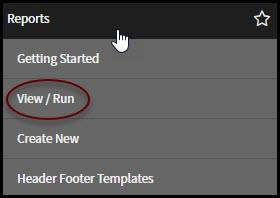
To share a report you have created with others, start by clicking on View/Run under Reports in the navigation panel on the left side of the screen.
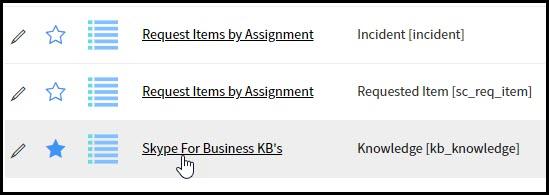
Click on the name of the report that needs to be shared.
This opens the report in Edit mode allowing changes to be made to the report. To share the report click the Share button at the top of the report window. There is also a blue Share button located at the bottom of the screen.


Clicking either button opens the Share panel on the right hand side of the screen. The two options for sharing are:
- Add to Dashboard - This places the report onto a homepage or service owner dashboard for quick access
- Export to PDF - Creates a PDF version of the report that can be sent to other people
Add to Dashboard opens another window that determines the location of the report. Click Homepage or Dashboard. On Homepage drop open the Homepage menu and choose which homepage the report should appear on.
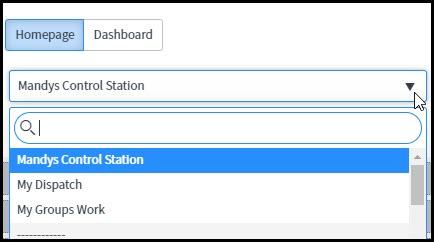
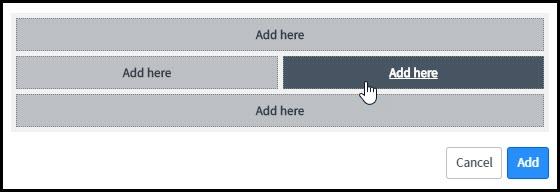
Then choose the location on the homepage where the report should appear.
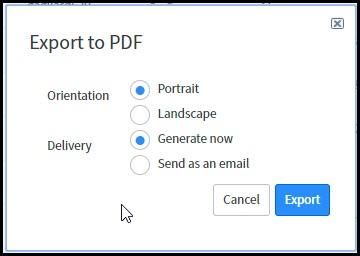
Export to PDF opens a small window. Specify the Orientation of the report and the Delivery. Click Export.