Filters provide the ability to control what content you see through out the system but most commonly on your Homepage.
The best way to start a filter is to start with one that already exists and customize it. Start by clicking the My Work filter in the navigation panel on the left side of the screen.

This will update your screen to show you any objects that are Active and Assigned to your lastname.#. At the top of the page you will see the blue filter icon and the breadcrumb trail showing you the details of your My Work filter.

Click the Filter icon to expand open the filter to make modifications. Filters are based off of conditions that must be met in order for an object to be returned. They can be linked together using AND and OR clauses allowing the creation of extremely detailed filters. The first field is Input Field, followed by an Operator then a Condition. In this example an object will return in the filter if the field Active is True.

This means if an object's Active field contains a True value then it will return in the results. Running this filter now would return ALL active objects and would take quite a bit of time to run. Filters need to be written to only bring back the results intended so many times conditions will have to be linked. To add another condition, click the AND or the OR button to add another condition to be met. AND means BOTH conditions must be true. OR means either condition may be true.

In this example all objects will be returned if they are Active and assigned to Gagliardi.20.

For each And with Or clause added all three fields (field, operator, value) must be set. The options chosen will be completely dependent on the type of data that needs to appear in the results.
To see details on Fields, Operators and Values please see the Filters documentation.
Once all conditions have been set click the Run button to see the results on screen.
If the results are what are expected and the filter will need to be used more than once, it can be saved and even added onto the Homepage for fast easy reference.
Save the Filter
To save the filter click the Save button at the top of the page.

Enter a name that is short yet descriptive enough to be able to determine what the filter is used for. Once the name has been entered click the Save button to the right of the name field.

Add the Filter
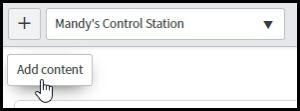
Once saved the filter can be added to any homepage. Navigate to the appropriate Homepage and click the Add Content button.
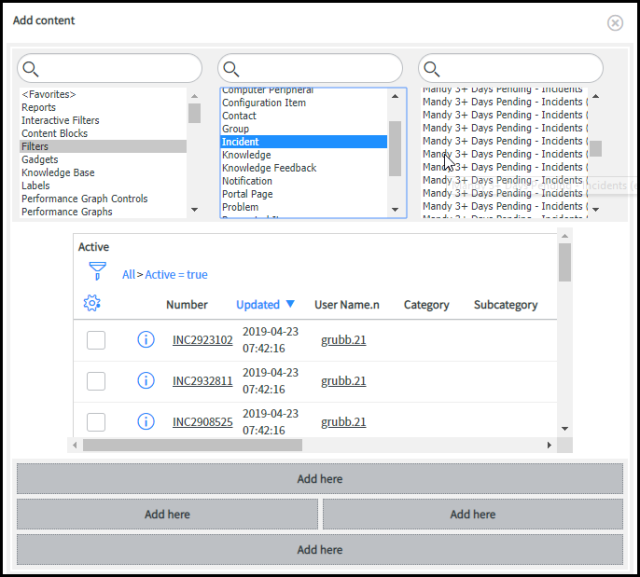
This will open the Add Content window. The three sections allow you to find the different filters that are part of the system and that you have created. In the first column select Filter. In the second column select the type of content your filter is used on such as Incidents, Tasks or Knowledge. Once the first two columns are set, the third column will show the different filters. Select your filter from the list. The middle section of the window will show a preview of the selected filter as it will appear on your homepage.
This technique can also be used to add Reports to a Homepage, just select Reports instead of Filters.
Once you have selected the correct item use the area chart at the bottom of the window to select where on the Homepage you would like the content to appear.