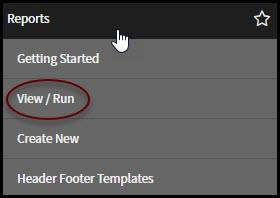
To start click on the View/Run button under Reports in the navigation panel on the left side of the screen.
Click the Create a report button in the upper right hand corner to start creating the structure of the report you need.
First plan the details of the report. Decide what type of report is needed, where the data is coming from and how the data should be organized and displayed. There are many contributing factors to reports so this aid will walk through some common options.
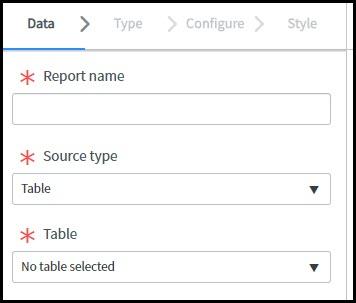
The Report Builder Wizard will walk through answering those questions and plotting the data for the report. Start by providing a name for the report. The name should be short and concise but relevant enough to identify its use from the name. Next specify the Source Type which will be either a Data Source or a Table. Most often the source type will be based upon a table. Finally specify which object is the data source by chosing from the Data Source field.
The two most common tables used are Task [task] and Task SLA [task_sla] however you may use any table you need.
- Task [task] - Allows you to search for tasks, request items, incidents and changes. All are contained within this one table.
- Task SLA [task_sla] – Allows you to perform searches based off of SLAs and can pull related data from the Task [Task] table.
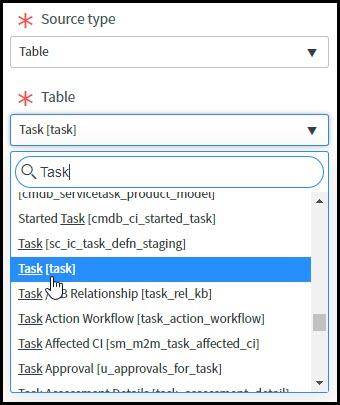
Click the drop-down menu for the field Table and choose the table that contains the data you are trying to report on. If you know the name of the table, you can start typing the name into the table field to make searching for it a little easier.
Click the Next button to move to the next page of the wizard. On this screen choose how the data should be presented by choosing the appropriate report type. There are many different types of reports that are used to display different types of data. The two most common are Lists and Pie Charts. Scroll through the report types and choose the most appropriate one.
To learn more about the different report types please see Report Types in Service Now for details.
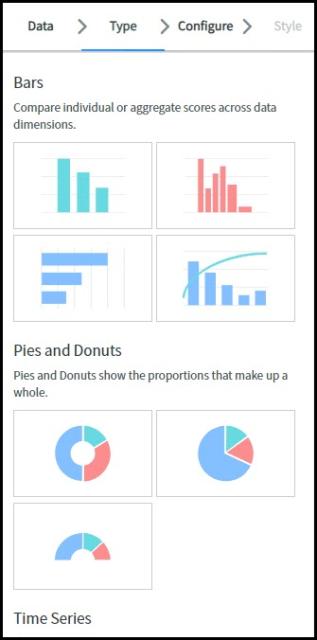
Once the correct report type is selected click the Next button to continue the wizard.
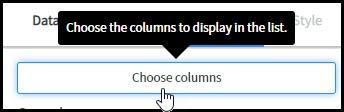
The report will be organized based upon the default structure of the report type. The Configure panel of the wizard provides an opportunity to choose which fields from the data source that need to appear in the report. This will be determined by the data source, the report type and the desired product. Click the Choose Columns button to decide which fields will appear in the final report.
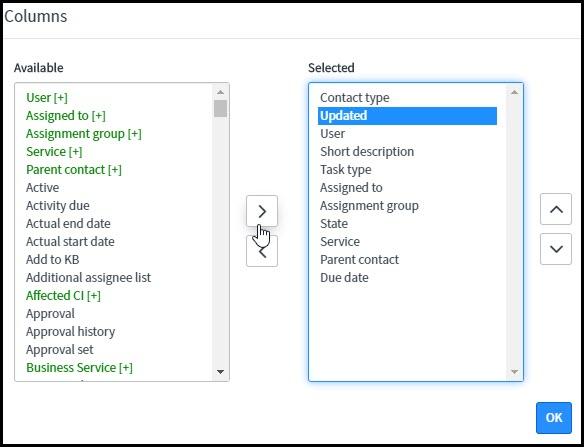
The window that opens shows all columns available for the report on the left and all columns in the report on the right. Add columns from the left to the right side by selecting the column name and clicking the right pointing arrow. Remove columns from the left by clicking the name and clicking the left pointing arrow.
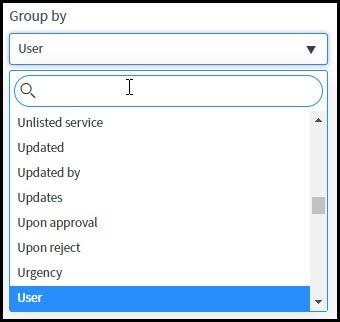
The Group By field is used to add grouping levels to the report to help organize the structure. You can choose options such as User, dates, email addresses, etc...
In this example the report will look at ALL active items because it is looking at the Task table for data. DO NOT run the report without adding criteria. Running the report at this point would return every single incident, request item, task and change record which would bring back an unmanageable amount of data.
Next criteria must be added to return only the data that needs to appear in the report. To add criteria, use the Filter

button located at the top of the preview window. This will open the Condition Builder that is used to create criteria to determine which records will return in the report. Conditions follow a simple format of Field, Operator, Value with the ability to add additional conditions using And / Or modifiers.
The first drop down menu is for Field. Start by specifying the field that contains the values you are looking for. Options available include User, Service Category, Active, etc...
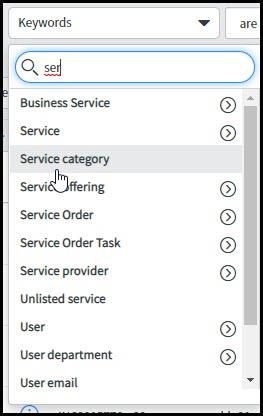
Next the operator needs to be set. The operators available in the menu will be controlled by the field that was chosen in the previous step. Commonly the field will contain options such as Is, Is Not, Contains, Does Not Contain, Starts With, Ends With, Date Ranges etc...
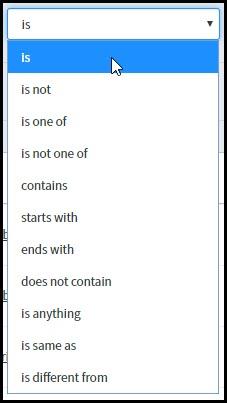
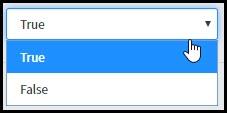
The final field is the value field. Once again, the values available to this field will be determined by the field and operator chosen previously. It could be an open text field that values can be typed into or a drop-open menu of predefined values, such as the service categories within Service Now or a calendar to choose date ranges.
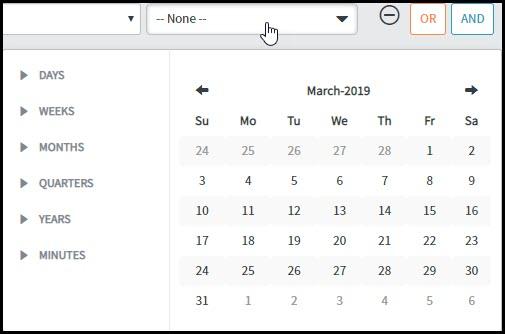
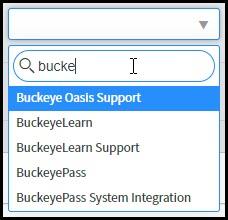
Once the conditions have been set click the Run button

to see the report. This will show a preview of the report. Any modifications necessary can still be made. If the report is enough then it can be shared or saved for future use by clicking the Share
or Save
buttons.