This page will walk through entering a new Change Request.
Select Change in the navigation panel to view Change Management tasks.
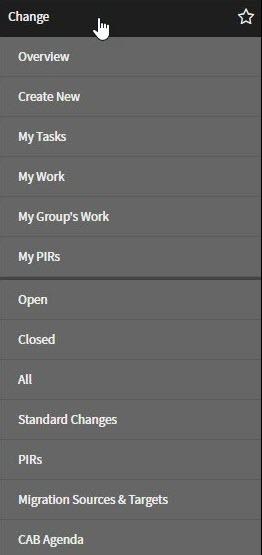
Select Create New
to open the New Change window.
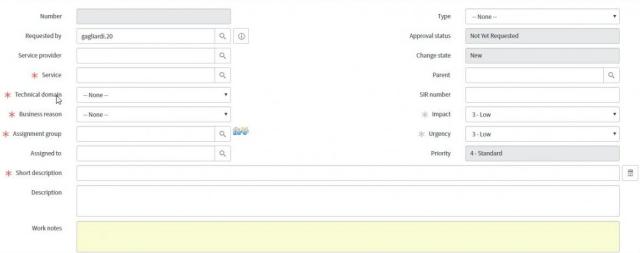
Add information to the required fields:
Required fields are designated by the red asterisk

to the left of the field.
Service: Type or search for the Service name using the

searchable list.
- Technical domain: Select the down arrow button and choose the appropriate Technical Domain (subcategory of Service).
- Service Design
- Application Development
- Server Administration
- Database Administration
- Middleware Administration
- Network Administration
- Storage
- Firewall
- Desktop Support
- Physical Plant
- Business Reason: Select the down arrow button and then select then select as appropriate
- Breakfix
- Enhancement
- Operational Necessity
- Mandate
- Assignment Group: Type or search for the Assignment group name.
- Short Description: Type a brief description of the change.
Impact: Select the down arrow button

and then select as appropriate High, Medium, or Low impact.
Urgency: Select the down arrow button
and then select as appropriate High, Medium, or Low urgency.
Remember Impact and Urgency drive Priority.
If known type a detailed Description of the change request.
Submit the request for change.
- Review the completed form to ensue necessary fields are complete.
Select the Submit

or Save

button.
- Make note of the Change Number assigned. (for example CHG123456)