Purpose: This article will help the university audience manage working in multiple Enterprise tenants. Ohio State faculty, staff and students may use both Microsoft 365 and Google Productivity Services as part of their work. Creating a separate Chrome profile for your Ohio State Google account can make it easier to use the correct account and avoid accidentally accessing university resources with a personal Google account.
Why separate Chrome profiles are helpful
It is easy to have multiple Google accounts signed in at the same time and accidentally open a Google Drive file, Google Meet invitation or other Google resource using the wrong account, creating a potential data breach. A separate Chrome profile creates a dedicated browser environment for university work and provides a visible reminder of which identity you are using.
Set up an Ohio State Chrome profile
- Open Chrome
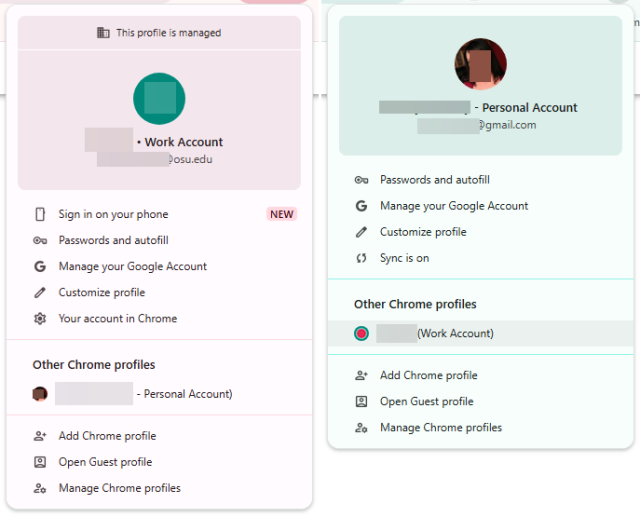
- Open the Profile menu
- In the upper-right corner of Chrome, select the Profile icon. Then select Add or Add Chrome profile.
- Sign in with your Ohio State account.
- Sign in using your Ohio State credentials. Follow any Ohio State authentication prompts that appear.
- Give the profile an obvious name
- Choose a name that makes the purpose of the profile immediately clear, such as OHIO STATE – WORK. Avoid using only your name, which may not clearly distinguish the profile from a personal account.
- Choose a distinctive color
- Assign the Ohio State profile a color that is noticeably different from your personal Chrome profile. Scarlet or red can provide an immediate visual cue that the browser window is being used for university work.
- Also, an avatar can be chosen from a list of preloaded avatars. Personal accounts can upload their own unique picture to their Google profile. Any visual reminders that the profiles are different can be helpful.
Switch between work and personal profiles
You do not need to sign out of Google each time you move between work and personal activity. Instead:
- Select the profile icon in the upper right-hand corner of chrome.
- Select the Chrome profile you want to use.
- Chrome opens the selected profile in a separate window.
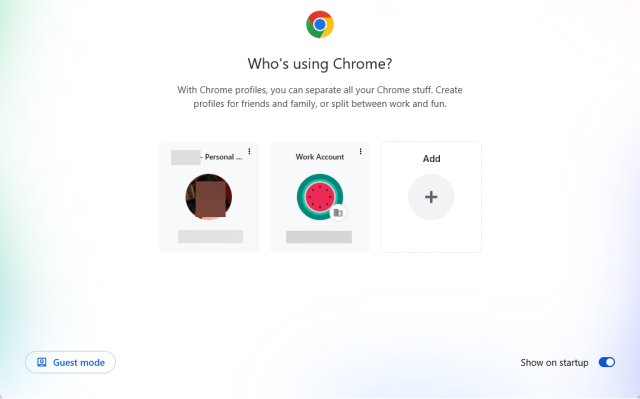
If you regularly use both profiles, you may also choose to display the profile picker when Chrome starts so you can select the correct profile before beginning.
Before accessing an Ohio State Google resource
Before opening an Ohio State Google Drive file, Google doc, sheet, meet or other Google resource, check the Chrome profile you are using.
- Is this my Ohio State Chrome profile?
- Am I signed in with my Ohio State Google account?
If not switch to your Ohio State Chrome profile before opening or working with the resource. This is especially important when following a Google link from Outlook, Teams or another application. The link may open in your browser, but you still need to verify the active Google session is associated with your Ohio State account.
Google Meet: Join while authenticated
When joining a Google meet meeting associated with university work:
- Open the meeting from your Ohio State Chrome profile and verify that you are signed in with your Ohio State account.
- This can help you enter the meeting using your university identity instead of joining with a personal account or as a guest.
WORK STARTS IN THE WORK PROFILE
If you're accessing an Ohio State Google resource or working with university information, start by opening your Ohio State profile.
Do not rely on Google to choose the correct account for you
If it is Ohio State work, use your Ohio State browser profile.