Selecting Filter Options

Reports may contain filters that allow you to narrow your results. Filters may be optional or required. Filters may be named slightly differently and may have different options within each filter, depending on the report.

Select the Population to Report On

Some reports include the ability to choose the population whose data is in the results. Options may include division(s), department(s), and/or a specific Ohio State username (lastname.#). These filters allow you to drill down into the population to only see results that you need.


Critical Note:

Any options you choose in the report will be saved for the next time you run the report.


Select All Ohio State and Medical Center Filters

  1. Click the Select Org Units button 

    select org units button

    on the All Ohio State and Medical Center filter. 

    the All Ohio State and Medical Center filter
  2. Check the box next to The Ohio State University. 

    the Ohio State University option with a checkbox visible
  3. Click the Select button 

    select button

    .

Select Division Filters

  1. Click the down arrow on the operand dropdown menu to change the operand, if required. 

    the division filter with the operand circled
  2. Click the Select Org Units button  

    select org units button

    on the Division filter.

  3. Check the box for each division you want to include in the report. 

    the division selection page
  4. Click the Select button 

    select button

    .

Select Department Filters

  1. Click the down arrow on the operand dropdown menu to change the operand, if required.  

    the department filter with the operand circled
     

    Helpful Note:

    The "starts with" operand is useful for finding all departments that start with the same word. To use the "starts with" operand, select it from the operand dropdown menu. Type the beginning of the name of the department and press Enter or click Create option.

  2. Click the Select Org Units button  

    select org units button

    on the Department filter.

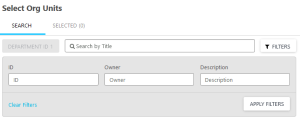
  3. Search for the department.  

    the departmnt selection page
    1. Type the department name in the Search by title field.
    2. Press enter to search.
    3. Check the box next to the correct department.
    4. Repeat to select additional departments as needed. 


      Helpful Note:

      To search by Department ID, click the Filters button

      filters button

      , then type the department ID in the ID field. Click the Apply Filters button 

      apply filters button

      to search. 

      the department selection page with the filters visible


  4. Click the Select button 

    select button

    .

Select Ohio State Username (lastname.#) Filters

  1. Click the down arrow on the operand dropdown menu to change the operand, if required. 

    the user name filter with the operand dropdown arrow circled
  2. Type the Ohio State Username (lastname.#). 

    the username filter with a lastname.# visible
 

Helpful Note:

To search for multiple users, change the operand to "is one of", and type each lastname.# and press Enter or click Create option after each lastname.#. 


Select Date Filters

  1. Click the down arrow on the operand dropdown menu to change the operand, if required. 

    the date filter with the operand down arrow circled
  2. Type the desired date or click the calendar icon  

    calendar icon

    to select it.

Select Training Filters

To Select a Training Course From a List

  1. Click the Select Training button  

    select training button

    on the filter.  

    the select training filter
     

    Helpful Note:

    To view only the most recent version of a training, click the Selected tab, then uncheck the Show all versions checkbox.

    the selected tab with the all versions checkbox circled
  2. Check the box next to the course name to select it.  
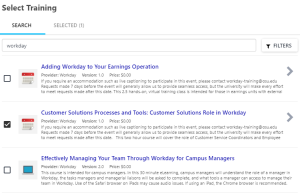
    the select training page with a course selected


    1. To select a specific session of an instructor-led course, click the arrow  

      arrow

      next to the event name, then select the session by date and time. 
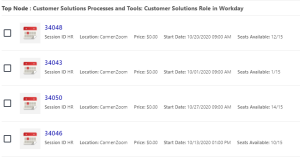
      sessions of an event
    2. To deselect a course, uncheck the box next to the course name.
  3. Click the Select button  

    select button

    to make your selections and return to the report.

To Search for a Training Course

  1. Click the Select Training button  

    select training button

    on the filter. 

    the select training filter
  2. Search for the course by name.
  3. Check the box next to the course name to select it.  

    the select training page with a course selected
    1. To select a specific session of an instructor-led course, click the arrow  

      arrow

      next to the event name, then select the session by date and time. 

      sessions of an event
    2. To deselect a course, uncheck the box next to the course name.
    3. Click the Filters button  

      filters button

      to further narrow your search results 

  4. Click the Select button  

    select button

    to make your selections and return to the report.


Helpful Note:

To select inactive (usually previous year or previous version) training

  1. Click the Filters button 

    filters button

    .

  2. Check the Include inactive trainings checkbox.  

    the select training filter options
  3. Click the Apply Filters button 

    apply filters button

    .

  4. Search for and select training.