An observer completes the On the Job Training process in BuckeyeLearn.
Navigate to On the Job Training.
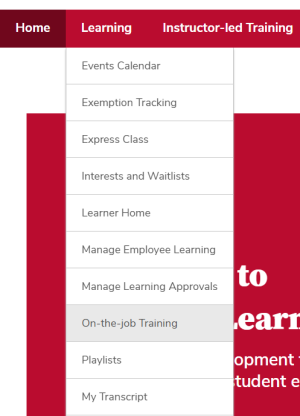
- Hover over the Learning tab.
- Click On the Job Training.
Scroll down to find the learner or search for the learner you want to record an observation for.
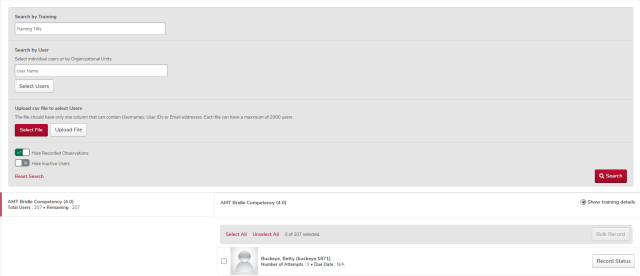
- Search by Training Title: This option is best when you want to record observations for multiple users for the same training title.
- Type the training title in the Search by Training Field.
- Click the Search button.
- Search by User: This option is best when you want to record an observations for a single learner.
- Type the learner's last name in the Search by User.
- Click the Search button.
- Select Users: Click the Record Status button next to the learner's name you want to record an observation for.
- Click the Select Users button.
- Search for the correct learner.
- Check the box next to the correct learner.
- Repeat for any additional learners.
- Click the Select button.
- Search by Training Title: This option is best when you want to record observations for multiple users for the same training title.
Click the Record Status button next to the learner's name you want to record an observation for.
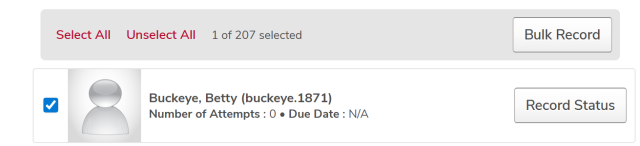
Note: If you do not see a learner you are expecting to see, contact the learner and ask them to verify that they have selected the Notify Observer option on their transcript and selected the correct observer.

- To record the same observation for multiple learners, check the boxes next to multiple learners, then click the Bulk Edit button.
Complete the observation form.
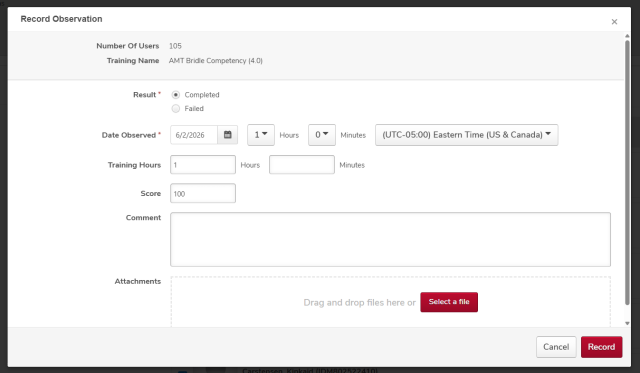
- Click the Record button to complete your observation.