- Open the roster that you want to bulk upload learners to.
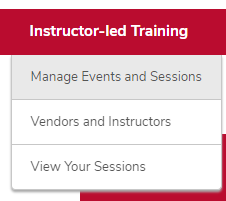
- Hover over the ILT tab.
Click Manage Events & Sessions.
Click the View Sessions button on the same line as your event.

Click the Roster button on the same line as your session.

Click the Download 'Bulk Add Users' template icon and save it.

Add learners to the Bulk Add Users template.
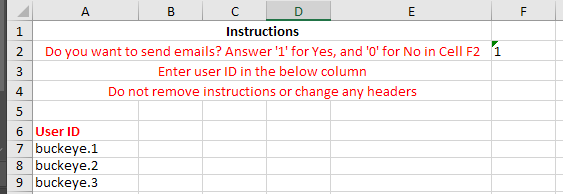
- Open the Bulk Add Users template.
- Type or paste the Ohio State Username (lastname.#) of each learner into the User ID column.
- Select an email option.
- To send an automated registration email to learners, type a one (1) in cell F2; this is the default option.
- To not send an automated registration email to learners, type a zero (0) in cell F2.
- Save the Bulk Add Users template.
Upload the Bulk Add Users template.

- Open the session you want to bulk upload learners to.
- Click the Browse or Choose File button.
- Select the saved Bulk Add Users Template and click the Open button.
Click the Upload Users button.
- Refresh the page to verify the roster has been uploaded.
